# Capture your meetings in one place
> Joins your meetings, writes the transcript and summary, and saves them to your brain.
 The notetaker joins your Teams, Zoom and Google Meet calls as a participant. After each one, you get a transcript and a plain summary, and the meeting is saved to your [individual brain](https://www.corridorcontext.com/docs/individual-brain/), so your AI knows what was said.
## What you get after a meeting
Open **Meetings** and click a meeting to see its recap: a summary with the decisions and action items, the full transcript, and the recording. You can download the summary or the transcript, or email the summary from there.
The meeting is also saved to your individual brain, which you can use from Claude or any AI you've [connected](https://www.corridorcontext.com/docs/connect-your-ai/claude/).
## Turn auto-join on or off
Auto-join is on by default. The switch is called **Auto-join calendar meetings**, at the right end of the filters on the **Meetings** page.
- **On:** the notetaker joins your calendar meetings on its own.
- **Off:** new calendar meetings aren't added. Meetings already in your list keep their notetaker, and you can still add one yourself with **New Meeting**.
- **Back on:** it also picks up the meetings already on your calendar for the next two weeks. They show up in your list after a moment.
## Add or remove the notetaker from a meeting
To bring it into a meeting that's already running, open the meeting in **Meetings** and press **Send notetaker now**. It joins as a guest, so if the call has a waiting room, someone in the call has to let it in.
To add a meeting that isn't on your calendar:
1. On the **Meetings** page, press **New Meeting**.
2. Paste the Teams, Zoom or Google Meet link.
3. Set the **Date & Time** it should join, and save.
Your calendar only shows meetings from a synced Microsoft calendar, so anything else is added this way.
To keep it out of a meeting, open that meeting and press **Remove notetaker** in the **Notetaker** box, then confirm. It won't join, and it won't come back on its own, even if the calendar invite changes.
During a meeting, the button reads **Remove from call**. The notetaker leaves right away, and whatever it captured up to that point is kept. If you change your mind, press **Send notetaker back in**.
## Choose who gets the summary
You decide meeting by meeting. Open the meeting and find **Summary sharing**.
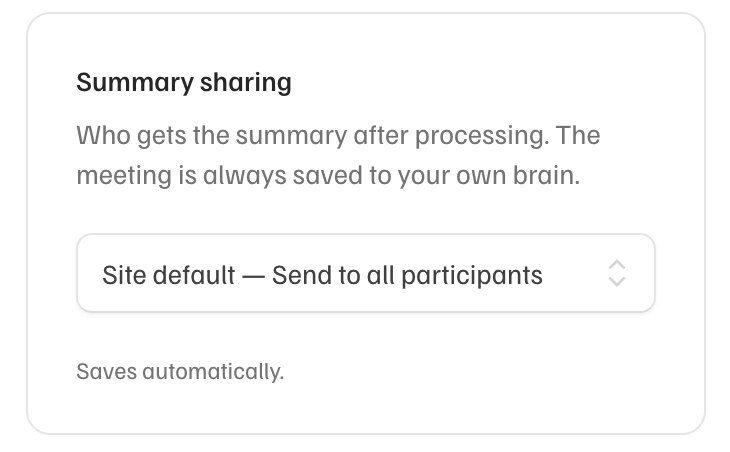
| Choice | Who gets the summary |
| --- | --- |
| Send to all participants | Everyone in the meeting |
| Send to only internal participants | People at your company |
| Do not send to anyone | Nobody |
Your [platform admin](https://www.corridorcontext.com/docs/admins/) sets the default. The meeting is always saved to your own brain, whichever you pick.
## Remove something that was said
Once a meeting is processed, anyone who was in it can remove a line from the transcript.
1. Open the meeting in **Meetings**, then the **Transcript** tab.
2. Press **Redact**. Press **Done** when you're finished.
3. Click the line, then **Redact this line**.
The words are replaced with **[redacted]** for everyone in the meeting. Who spoke and when stays. There's no undo.
### Keep sensitive topics out of every meeting
Your [platform admin](https://www.corridorcontext.com/docs/admins/#sensitive-topics) can choose topics your company treats as sensitive: health, people and HR, legal, and pay. When a topic is on, the summary and the summary email say only that it came up and what was decided, and leave out the detail. Your admin can also have those passages removed from the transcript before it's saved, replaced with a marker such as **[redacted: health]**.
Social Security, account and card numbers are always removed, whatever your admin chooses.
## Questions
**Is it recording when I can't see it?**
No. The notetaker only captures a meeting it has visibly joined. It shows up in the participant list by name, so everyone in the meeting can see it's there. If it isn't in the list, nothing is being captured.
**Why didn't it join a meeting on my calendar?**
It's probably waiting in the waiting room for someone to let it in. If it isn't there, open the meeting in **Meetings** and look at the **Notetaker** box:
- If it says it joins automatically at the start time, it's booked. Press **Send notetaker now** to bring it in right away.
- If it offers **Schedule notetaker**, it was never booked. Press it, and check that **Auto-join calendar meetings** is on for next time.
- If the meeting isn't in the list at all, add it with **New Meeting**.
On Zoom, the host also has to allow recording when Zoom asks.
**Can I remove it from inside the call?**
Yes. Find the notetaker in the participant list and remove it the way you would remove a person.
**Do my meetings go into a team brain or the company brain?**
Not on their own. Your meetings go to your [individual brain](https://www.corridorcontext.com/docs/individual-brain/). Your AI can suggest what matters from them to a [team brain](https://www.corridorcontext.com/docs/team-brains/) or the [company brain](https://www.corridorcontext.com/docs/company-brain/), and a lead approves it.
---
Source: https://www.corridorcontext.com/docs/notetaker/