# Set up Corridor Context for your company
> Decide who gets a seat, follow each new person's setup, set up your company brain and team brains, add your firm's use cases, and keep sensitive topics out of meeting notes.
As your company's platform admin, you decide who gets a seat, follow each new person through setup, set up the company brain and the team brains, add your firm's use cases to the Catalog, and choose which topics stay out of meeting notes.
## Decide who gets a seat
Open **Admin** in the sidebar, then **Users**. Everything about seats happens there.
- **Who can join:** choose **Anyone at our domains** or **Invite only** at the top. Switching to Invite only never takes a seat away from anyone.
- **Requests:** people who ask to join show up in a strip at the top. Press **Review**, then **Approve** or **Decline**.
- **Roles:** pick **Admin** or **Member** from the Role menu on anyone's row.
- **Add someone yourself:** press **Add user**, enter their name and work email, and pick their role. They get an invite email with a button to sign in.
- **Follow someone's setup:** click their name. Under **Setup**, each step shows when they finished it, and the next one says **Up next**. It also shows which AI they connected.
- **Resend an invite:** in the same panel, press **Resend invite**. The button is there until they finish setup, and each person can get one invite an hour.
- **Find anyone:** filter by Admins, Requests, Not signed in or Deactivated, or search by name or email.
## Set up your company brain
Until your company brain exists, a red banner across the top of the app says **This company has no brain yet**. Team brains sit under the company brain, so set it up first.
1. Press **Set up now** in the banner.
2. Check your company's name. You're already on it as a lead.
3. Press **Create the company brain**.
You can add people as you set it up, or later from the company brain itself. Only the people picked are on it, so a vendor or contractor can stay off it. See [company brain](https://www.corridorcontext.com/docs/company-brain/) for how it fills in.
## Create team brains
Open **Team Brain** in the sidebar and choose **Create a team brain**. Name it, pick the people, and set each one as a lead or a member. You become its first lead. From there, its leads run it. See [team brains](https://www.corridorcontext.com/docs/team-brains/) for how one fills in.
## Add your firm's use cases
The Catalog, under **Cookbook** in the sidebar, is your firm's own list of the ways your team uses AI. Only admins add, edit, hide or remove use cases. You ask Claude to write them up, paste the block it gives you, and read every prompt before you publish. See [Use the Catalog](https://www.corridorcontext.com/docs/catalog/#for-admins) for each step.
## Sensitive topics
Open **Admin**, then **Sensitive Topics**, and pick the topics your company treats as sensitive: **Health**, **People and HR**, **Legal**, and **Pay and compensation**. When a topic is on, the meeting summary and the summary email say only that it came up and what was decided, and leave out the detail.
Turn on **Also remove these topics from the saved transcript** to go one step further: those passages are removed before the transcript is saved, and replaced with a marker such as **[redacted: health]**.
When we set up your company, we turn on the topics you need, and you can change them any time. Social Security, account and card numbers are always removed, whatever is switched on here.
## Questions
**What does Invite only change?**
People at your company's domains need an admin to say yes before they get a seat. They see a **Request access** button instead of getting in on their first sign-in. Nobody who already has a seat loses it.
**How does someone ask to join?**
They sign in with their work Microsoft account and press **Request access**. Every admin gets an email, and the request shows up at the top of the Users page and under **Requests**. A request nobody answers expires after 30 days.
**Does everyone have to finish setup?**
Yes. Anyone who hasn't finished setup goes through the guided setup the next time they sign in, admins included, and can't skip it. Anyone who has already finished isn't affected. See [Get started](https://www.corridorcontext.com/docs/get-started/).
**What happens when I approve or decline?**
Approve gives them a seat and an invite email. Decline emails them that the answer is no, and you have two minutes to undo it before the email goes out. Someone you declined can't ask again for 14 days. To change your mind in that time, open **Declined requests** under Requests and press **Approve anyway**.
**What's the difference between an admin and a member?**
An admin sees every meeting and manages users. A member sees the meetings they own, were invited to or attended. You can't change your own role, so another admin has to do it for you.
**What do the statuses mean?**
**Active** means signed in and set up. **Setup not finished** means signed in but not set up yet. **Not signed in yet** means you added them and they haven't signed in. **Deactivated** means they can't sign in; reactivate them from the **...** menu on their row.
**Can I add someone outside my company?**
Yes, with **Add user**. They get an invite email, and they need a work Microsoft account to sign in.
**What's on the Admin page?**
**Users**, **Notetaker Calendar Account**, **Notetaker Bot** and **Sensitive Topics**, plus **Company Brain** and **Internal domains** once your company brain is on.
**How do I change which domains count as ours?**
Email [support@corridorcontext.com](mailto:support@corridorcontext.com). We set your company's email domains for you.
---
Source: https://www.corridorcontext.com/docs/admins/
# Use the Catalog
> Find the ways your firm uses AI and start one in your own Claude or ChatGPT. Admins add use cases from Claude, and the review shows every prompt before it goes live.
The Catalog is your firm's own list of the ways your team uses AI. Each card is one use case: what it does, how the team uses it, and up to three starter prompts that work as they are. Open **Cookbook** in the sidebar, and the Catalog is the first tab.
The second tab, **Corridor Cookbook**, holds 13 ready-made skills for Claude that we write, the same for every firm. The Catalog is the one your admins fill in.
## For everyone
### Find a use case
Open **Cookbook** in the sidebar, then the **Catalog** tab. The cards your team uses most in the last 30 days come first.
- **Groups:** once the Catalog has enough cards, chips above them filter by group, such as Finance or Operations. A group gets a chip once it has three use cases. The rest sit under **Other**.
- **Trending:** up to three cards your team started or copied most in the last 30 days are marked **Trending**.
If your firm hasn't added any use cases yet, the Catalog says so, and **Open the Corridor Cookbook** takes you to the 13 skills instead.
### Start a use case in your AI
1. Click a card to open it. You see what it does, **How the team uses it**, and its starter prompts.
2. Under the prompt you want, press **Try in Claude** or **Try in ChatGPT**.
**Try in Claude** opens a new chat with the prompt filled in, so you can read it and press send. **Try in ChatGPT** opens a new chat and sends it right away. It runs in your own AI, with your own connectors, so read the prompt first.
### Copy a prompt
To use a prompt somewhere else, like a chat you already have open, press **Copy** under it. The button says **Copied**, and the prompt is ready to paste.
### Suggest a use case
Not an admin? Copy [the prompt](#the-prompt-in-full) from this page, run it in Claude, and send the block Claude gives you to your admin. They review it and publish it.
## For admins
Only admins can add, edit, hide or remove use cases. Anyone can run [the prompt](#the-prompt-in-full), and someone who isn't an admin can send you the block Claude gives them.
### Add use cases from Claude
1. On the Catalog tab, press **Add use cases**.
2. Under **Run this in your Claude**, press **Open in Claude**. It opens a new chat with the prompt filled in. Press send. You can also press **Copy** and paste the prompt into a chat yourself.
3. Claude asks which skills you want to share. A skill is a folder of instructions, and sometimes scripts and files, that Claude loads when a task needs it, so it does the job your firm's way. Type the names of the skills you use, then pick how you use each one.
4. Claude replies with one line and one block. Copy all of it.
5. Back in the Catalog, paste it under **Paste what Claude gave you** and press **Continue**.
One paste can hold up to 100 use cases. To add one by hand instead, press **Type one in**, fill in the form and press **Done**. It joins the review below.
### Review every prompt, then publish
After you press **Continue**, you see **Check what Claude found**, with each use case and its prompts in full. Corridor Context can't judge whether a prompt is safe, and your team runs it with their own connectors, so read every prompt before you publish.
- Each use case is marked **New**, **Changed**, **No change** or **Needs details**. **Needs details** can't be ticked until you add what's missing with **Edit**. **No change** has nothing to publish.
- A use case starts unticked if it names a person, says I, you or we, contains a link, uses a group that isn't on your list, or changes a prompt that's already live. Read it, fix it with **Edit** if you need to, then tick it.
- Only ticked use cases are published. The button counts them, such as **Publish 3 use cases**. Press it, and your team sees the new cards right away.
Use cases match by skill name, so running the prompt again next week updates the same cards instead of adding new ones.
A starter prompt that names a skill only works for teammates whose Claude has that skill. Before you publish, share the skill with your team in Claude. On Claude Team and Enterprise plans, an organization owner can provision a skill for everyone from organization settings, or let members share skills with each other.
### Edit, hide, remove and restore
Open a card. As an admin, you see who added it and when, and three buttons:
- **Edit:** change the title, what it does, how the team uses it, the starter prompts (up to three), the group and the picture. Press **Save**.
- **Hide from team:** nobody else sees it, but you still do, under **Hidden from the team**. **Show to team** puts it back.
- **Remove:** takes it away for everyone, once you confirm. To bring it back, open **Removed** under the cards and press **Restore**. It comes back as it was: a card that was hidden when you removed it stays hidden until you press **Show to team**, and a card whose group no longer exists comes back under **Other**.
### Organize groups and pictures
Open the **...** menu beside **Add use cases** and choose **Edit groups**. Your firm can have up to five groups, plus **Other**, which is always there. Claude picks from this list when it writes your use cases.
- Rename a group by typing over its name, and its cards move with it.
- **Remove** a group, and its cards move to Other.
- **Add a group**, then press **Save**.
Every card gets a picture from our library. Claude suggests one when it writes the use case. To change it, press **Edit** on the card, then **Change icon**, and search by job or word, such as rent, invoice or hire.
## The prompt, in full
This is the prompt the **Copy** button gives you. Your copy lists your firm's own groups in place of the five shown here. If a block names a group your firm doesn't have, the review flags it and you pick one of yours.
```text wrap
I want to share an AI skill I use with my team, on our Corridor page. Help me in three short steps.
Before you start: load my Corridor Context if it is connected. That tool is allowed.
One thing is not allowed: do not call any tool that looks up or lists skills, and do not show a skills card. You already know which skills are turned on in this chat. Use only that.
Step 1. Ask me one short question in the chat: "Which skill do you want to share? Type its name. You can name more than one." Do not list my skills. Wait for my answer. If a name I type matches no skill you know, tell me and ask again. If I say I do not remember the name, show me at most eight skills that I used in recent chats, as a short numbered list.
Step 2, right after I name the skills: use your tool that asks the user a question with choices to click (the "ask user question" tool). Do not ask in chat when that tool can do it. For each skill, ask: "How do you use , day to day?" Offer three short, likely answers that you take from what that skill does. I can pick one or write my own.
Step 3. Write one entry for each skill. A teammate who has never used it reads it. Write every field like a label on a tool: no "I", "you" or "we". Start each line with a verb or a noun. Turn my answers into that form, for example "I use it on Mondays when a new partner signs up" becomes "Used on Mondays when a new partner signs up." The starter prompts are the one exception: a person sends them to Claude as their own words, so keep "me" in them. Each starter prompt must work when someone sends it as it is.
Write for any teammate, not for me. Never use my name or any person's name, even if the skill's own description has one. Where the skill says a name, write "the writer" or "the user" in the fields, and "my" in the starter prompts. For example, a skill described as "Rewrites prose in Dana's voice" becomes "Rewrites a draft in the writer's own voice", and its starter prompt says "Rewrite this in my voice." Use plain words that a new employee would understand. Do not invent anything. If you do not know a detail, leave it empty.
Your last reply has two parts, in this order, and nothing else.
First, one line in plain words, before anything else: "Done. Copy the block below and paste it into your Corridor page, under Add use cases. Not an admin? Send the block to your Corridor admin."
Second, one code block in exactly this JSON shape:
{
"corridor_use_cases": 1,
"made_on": "YYYY-MM-DD",
"use_cases": [
{
"name": "the exact skill name",
"kind": "skill",
"title": "Draft a weekly report",
"line": "Turns call notes into a one-page brief.",
"how_we_use_it": "Used on Mondays when a new partner signs up.",
"prompts": [
{ "title": "A short label", "prompt": "Use the skill. Then the request in plain words. End with one sentence that asks me for the details you need, for example: Ask me for the partner's name before you start." }
],
"group": "One of: Client service, Finance, Operations, Sales, People, Other.",
"icon_words": ["chart", "envelope", "calendar"]
}
]
}
Rules:
- "title": five words or fewer, starts with a verb.
- "line": says what it does, in 14 words or fewer.
- "how_we_use_it": one or two short sentences, from my answer.
- "prompts": two or three for each entry. No square brackets and no blanks. End each one with a sentence that asks for the details you need.
- Do not write "I", "you" or "we" in any field except "prompts".
- No person's name in any field or prompt.
- "kind": skill, project or connector.
- "group": pick one from the list in the shape. Do not make a new one.
- "icon_words": three plain nouns that could be a small picture for this entry.
```
---
Source: https://www.corridorcontext.com/docs/catalog/
# Changelog
> What changed in Corridor Context, newest first.
- 2026-11-16: [Meet your new home base](https://www.corridorcontext.com/docs/changelog/home-base/): The Dashboard now shows your day on one screen. You see today's meetings, the ones to catch up on, who owes what, and where your hours went.
- 2026-11-16: [A guided start for everyone new](https://www.corridorcontext.com/docs/changelog/guided-start/): New people now set up in one guided flow. A short interview builds their brain, then they connect their AI and take a tour. Anyone who never finished setup goes through it at their next sign-in.
- 2026-11-16: [Catalog: your firm's use case library](https://www.corridorcontext.com/docs/changelog/catalog/): Your firm now has its own Catalog. Each card is one way your team uses AI, and anyone can open it and start it in their own Claude or ChatGPT. Admins add cards straight from Claude.
- 2026-10-27: [Decide who gets a seat](https://www.corridorcontext.com/docs/changelog/seats/): Admins can now make the app invite only, approve people who ask to join, and set who is an admin, all from the Users page.
- 2026-10-20: [See your whole brain on one map](https://www.corridorcontext.com/docs/changelog/brain-viewer/): Your brain now opens as a map of every page. See your overview, read any page, and find anything with Cmd+K.
- 2026-09-28: [The notetaker now joins Zoom and Google Meet](https://www.corridorcontext.com/docs/changelog/zoom-and-google-meet/): Meetings on your calendar that use Zoom or Google Meet now get the notetaker, the same as Teams.
- 2026-09-21: [Notetaker questions, answered](https://www.corridorcontext.com/docs/changelog/notetaker-questions/): When the notetaker joins, how to remove it from a meeting, who gets the summary, and what it never does.
---
Source: https://www.corridorcontext.com/docs/changelog/
# See your whole brain on one map
> Your brain now opens as a map of every page. See your overview, read any page, and find anything with Cmd+K.
2026-10-20 · Your brain · 55 sec video · new
My Brain is now one place. It opens on a map of every page in your brain, grouped by section, and pages that changed in the last two weeks are marked active. Click any page to read it.
## Where did Home and Browse go?
They are now one page, My Brain.
The map replaces both. Press Overview at the top for the summary Home used to show.
## Will editing a page break anything?
No. Your edits keep everything your assistant relies on.
The details stored at the top of each page are kept. Saving only adds any new page links and today's date. If a page cannot open as formatted text without changing it, it opens as plain text and tells you why.
## Why aren't my meetings on the map?
Meeting transcripts and raw captures are sources, not pages.
The map only draws pages. Press Cmd+K to find a meeting transcript or a raw capture, or open them from the sidebar.
## How do I link one page to another?
Type @ while you edit, then pick the page.
A short list of pages opens as you type the name. Pick one and the link goes in at that spot. The **@ Link a page** button in the editor's toolbar does the same. When you save, the linked page shows under **Connected pages** on both pages.
## What do the bigger and faded dots mean?
Bigger dots have more links. Faded dots have been quiet for a month.
A page with many links to and from other pages draws larger. A page nobody has changed in 30 days fades, and so does one marked archived or superseded. Pages that changed in the last two weeks are marked active.
## Can I undo an edit?
Yes, until you save.
While you edit, press Cmd+Z to undo a change, or press **Discard** to drop every change since you pressed Edit. Once you press **Save page**, the old text is not kept, so read the page over before you save.
## What if my assistant changes a page while I'm editing it?
Nothing is overwritten. You choose which version to keep.
When you press **Save page**, you see your version and the saved one side by side. Press **Keep mine (removes their changes)** to replace theirs, **Take theirs** to drop your edits, or **Copy mine, then edit theirs** to copy your text and open the newer version so you can paste in what you need.
## How do I get from a meeting to the pages it mentions?
Open the meeting's transcript and look at Connected pages.
Press Cmd+K, type a word from the meeting's title, and open its transcript. The **Connected pages** list beside it shows every page the meeting links to. Click one to open it.
## Who else can see my brain?
Only you, and the assistant you connected to it.
My Brain always opens the brain of the person signed in, so a teammate who presses it sees their own. A link your assistant gives you opens only your brain, works once, and expires after 3 minutes.
In Corridor Context: Open My Brain
---
Source: https://www.corridorcontext.com/docs/changelog/brain-viewer/
# Catalog: your firm's use case library
> Your firm now has its own Catalog. Each card is one way your team uses AI, and anyone can open it and start it in their own Claude or ChatGPT. Admins add cards straight from Claude.
2026-11-16 · Catalog · 62 sec video · new
Open Cookbook in the sidebar, and the first tab is your firm's Catalog. Each card is one way your team uses AI, with what it does, how the team uses it, and starter prompts. Open one and start it in Claude or ChatGPT, or copy a prompt. Admins add use cases by asking Claude to write them up, and the review shows every prompt before anything goes live.
For every step, with a short clip of each, see [Use the Catalog](https://www.corridorcontext.com/docs/catalog/).
## Where do I find the Catalog?
Open **Cookbook** in the sidebar. The first tab, **Catalog**, holds your firm's use cases.
The page has two tabs, **Catalog** and **Corridor Cookbook**, and on the Catalog tab its heading is your firm's name followed by "Catalog". Once your firm has use cases, the Catalog opens first. Until then, the Corridor Cookbook does, except for admins, who always start on the Catalog.
## What is Trending?
Up to three use cases your team started or copied most in the last 30 days.
Each needs at least three presses of **Try in Claude**, **Try in ChatGPT** or **Copy** to count. The same person pressing again within 10 minutes counts once. The cards are also sorted that way, most used first.
## How do I start a use case?
Open its card and press **Try in Claude** or **Try in ChatGPT** under the prompt you want.
Each card shows what it does, how the team uses it, and up to three starter prompts. **Try in Claude** opens a new chat with the prompt filled in, so you can read it before you send it. **Try in ChatGPT** sends it right away. Either way, it runs in your own AI, with your own connectors. To use a prompt somewhere else, press **Copy**.
## What if a card uses a skill I don't have?
Some starter prompts name a skill, such as "Use the late-rent-notice skill." A skill is a folder of instructions, and sometimes scripts and files, that Claude loads when a task needs it. If your Claude doesn't have that skill, it can't follow it. Ask your admin to share it with your team in Claude. On Claude Team and Enterprise plans, an organization owner can provision a skill for everyone at once.
## Who can add a use case?
Admins.
An admin presses **Add use cases**, runs the prompt it gives them in Claude, and pastes back the block Claude writes. Anyone can run that prompt. If you're not an admin, send the block Claude gives you to your admin.
## Can anything go live without an admin?
No. Only an admin can publish, and the review shows every prompt in full first.
After the paste, the admin sees **Check what Claude found**, with every prompt in full. Corridor Context can't judge whether a prompt is safe, so the screen asks the admin to read each one. A use case that names a person, says I, you or we, contains a link, or changes a prompt that's already live starts unticked. One that's missing details can't be ticked until it's fixed. Only ticked use cases go live.
## How do I hide or remove a card?
Open the card. Admins see **Hide from team** and **Remove** on it.
**Hide from team** takes it off everyone else's Catalog. Admins still see it under **Hidden from the team**, and **Show to team** brings it back. **Remove** takes it away for everyone, after you confirm. To bring it back, open **Removed** under the cards and press **Restore**.
## What's the difference between the Catalog and the Corridor Cookbook?
The Catalog is your firm's own use cases. The Corridor Cookbook is the same 13 skills for every firm.
Your admins write the Catalog, so it shows how your team works. We write the Corridor Cookbook: ready-made skills for Claude, in three groups, **Start here**, **Every day** and **Power tools**. That tab also has walkthroughs under **Learn**.
In Corridor Context: Open Cookbook
---
Source: https://www.corridorcontext.com/docs/changelog/catalog/
# A guided start for everyone new
> New people now set up in one guided flow. A short interview builds their brain, then they connect their AI and take a tour. Anyone who never finished setup goes through it at their next sign-in.
2026-11-16 · Getting started · 61 sec video · new
Everyone new now sets up the same way, in one flow. They join your workspace, sign in to Claude or ChatGPT with their work email, and answer a short interview, by talking or typing, that builds their brain. Then they connect their AI and land on the Dashboard with a short tour. Admins follow each person's progress from the Users page.
Setup takes about 20 minutes, once. The interview is about ten of them. Five steps, shown as dots at the top, take you from your invite to your Dashboard.
## The five steps
1. **Join:** accept the terms and press **Join the workspace**.
2. **Sign in to your AI:** open Claude or ChatGPT, sign in with your work email, and press **I already signed in**.
3. **Your role:** pick the kind of work you do. It shapes the questions.
4. **The interview:** choose **Talk** or **Type**, then answer questions about your role, what you're working on, the people you work with and the systems you use. You can switch between talking and typing any time. Afterwards, you can bring over the memory you've built with another AI, or press **Skip for now**. Then you check the pages your answers became, under **Here is what we wrote. Does it look right?** Nothing is saved until you press **Looks right**.
5. **Connect your AI:** add Corridor Context to Claude or ChatGPT and press **I'm connected**.
## Sign out and pick up later
You can press **Sign out** at the top right, up to and during the interview.
Your interview answers are saved as you go. Sign back in within a day, pass the first screens again, and the interview picks up at the question you were on.
## Connecting your AI can wait
You don't have to connect your AI to finish. Your brain is saved once you press **Looks right**.
On the connect screen, **Skip for now and go to my dashboard** takes you straight in. The Dashboard may remind you with **Connect Claude to finish setup**. Connect when you're ready with [Connect Claude](https://www.corridorcontext.com/docs/connect-your-ai/claude/).
## At the end
You land on the Dashboard, and a short tour shows you around.
If you pressed **I'm connected**, one screen comes first. **Get started** opens your AI with a prompt that reads your new brain and suggests three things it can help you finish. The tour walks through your day, your meetings, the notetaker, your brain and the Cookbook, then offers prompts to try.
You can't take the tour again once you finish it. If you stop partway with **Not now**, it can pick up later. The next time you sign in on the same browser and open the Dashboard, it asks **Pick up the tour?** Press **Resume** to carry on where you stopped. The tour uses example meetings and saves nothing to your brain.
---
## Can someone skip setup?
No. Anyone who hasn't finished setup goes through this flow the next time they sign in, admins included. Two parts of it are optional: bringing over memory from another AI, and connecting your AI.
That includes people you added earlier who started setup and never finished, or skipped it. Until they finish, every page in Corridor Context takes them back to the flow. Anyone who has already finished setup goes straight to their Dashboard as before. If people on your team never finished, let them know before they next sign in.
## How do I see where someone is stuck?
Open **Admin**, then **Users**, and click their name.
Under **Setup**, each step shows when they finished it, and the next one says **Up next**. You see when they were invited or joined, signed in to Corridor Context, signed in to their AI, built their brain, and which AI they connected. It also shows when they were last active.
## How do I resend an invite?
Press **Resend invite** in their panel on the Users page.
It shows only for someone who hasn't finished setup. Each person can get one invite an hour, so after you send one, the button says **Invite resent** until the hour is up. Adding someone who's already on the Users page sends nothing.
## What does the invite say?
It tells them they were added to Corridor Context, with one button to sign in.
It says who added them, and lists three steps: sign in with their work Microsoft account, set up in about 20 minutes, then start.
In Corridor Context: Open Users
---
Source: https://www.corridorcontext.com/docs/changelog/guided-start/
# Meet your new home base
> The Dashboard now shows your day on one screen. You see today's meetings, the ones to catch up on, who owes what, and where your hours went.
2026-11-16 · Your day · 52 sec video · new
Open Corridor Context and you land on the Dashboard. It shows today's meetings, the recorded meetings you missed this week, and how your week in meetings adds up. Open any meeting you missed to read its summary and see who owes what. The sidebar has a new look too.
## What's on my Dashboard?
Your day, top to bottom. It starts with a greeting and today's date.
- Four numbers at a glance: meetings today, hours in meetings so far this week, meetings you missed this week, and hours of meetings today, with the time your last one ends.
- **Today:** your meetings today. **Next** marks the next one to start. Click a meeting to open it.
- **Catch up:** recorded meetings from this week that you weren't on.
- **Your time:** your hours in meetings each day this week, one block per meeting. Point at a block for its name, or click it to open the meeting. A second view shows which meetings run over.
If you lead a team brain, a line under the greeting tells you how many suggestions are waiting for your review.
## What does Catch up show?
Recorded meetings from this week that you weren't on.
The list starts each Monday and shows the newest first. It covers meetings you can open in Corridor Context, including meetings in projects you belong to. Click one to open its summary. If the summary isn't ready yet, the row says **Summary not ready yet**.
## What do All set and Who owes what do?
**All set** marks a meeting as caught up. **Who owes what** lists the action items from its summary.
Both are in the summary that opens when you click a meeting in Catch up. Press **All set** when you've read it. The button turns to **Caught up**, and the meeting stays on the list with a green tick, so you can still find it. Press the button again to undo.
**Who owes what** shows your own items first, marked **You**. It shows five at a time, and **Show all** shows the rest. Press **Open full meeting** for the whole recap.
## How are my hours counted?
Each meeting counts for its booked length, not how long it ran.
A meeting counts if you were on the call. A meeting the notetaker didn't record counts too, as long as it's still on your calendar. A recorded meeting you weren't on doesn't count. Meetings that overlap each add their full length, so your hours this week can be higher than the time that passed.
Switch to **Which meetings run over?** to compare a meeting's booked length with how long it really ran. It looks at meetings you were on in the last 28 days and shows up to four. A meeting that repeats is averaged over its last four times, and repeating meetings that run over come first. Within 5 minutes either way counts as **On time**.
## Why is my Dashboard empty?
The notetaker hasn't seen any of your meetings this week yet.
Until it does, the Dashboard says **Your week's meetings will show here** and offers **Open Meetings**. Add a meeting there with its link, and it shows up. **Your time** fills in after a few weeks of meetings.
## What changed in the sidebar?
It has a new look, and the Changelog is no longer in it.
From the top: **Dashboard**, **Meetings**, **My Brain**, **Cookbook**, **Integrations** and **Team Brain**. Admins also see **MCP Connections**. **Send feedback** sits at the bottom, with **Admin** under it if you're an admin. New: if you lead a team brain, a number beside **Team Brain** shows how many suggestions are waiting for you.
## Where did the Changelog go?
Here. It's no longer in the app's sidebar.
Every new feature is written up in these docs, newest first, with the questions people ask most and, for most, a short video. Find it under **Changelog** in the docs sidebar.
In Corridor Context: Open Dashboard
---
Source: https://www.corridorcontext.com/docs/changelog/home-base/
# Notetaker questions, answered
> When the notetaker joins, how to remove it from a meeting, who gets the summary, and what it never does.
2026-09-21 · Meetings
The questions we hear most in onboarding sessions. Each one has the short answer up front. Open one for the steps.
## Will the notetaker join every meeting on my calendar?
You control this. Auto-join is on by default, and you can turn it off.
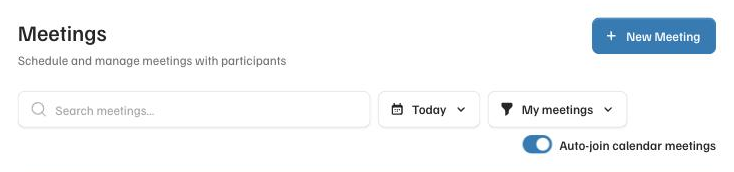
The switch is called **Auto-join calendar meetings**, at the top right of the **Meetings** page. While it is on, the notetaker joins your calendar meetings on its own. Turn it off and your calendar stops adding meetings. You can still add one yourself with **New Meeting**. Turn it back on and it also picks up the meetings already on your calendar for the next two weeks.
## How do I keep the notetaker out of one meeting?
Open that meeting and press Remove notetaker.
1. Open **Meetings** and click the meeting.
2. In the **Notetaker** box, press **Remove notetaker** and confirm.
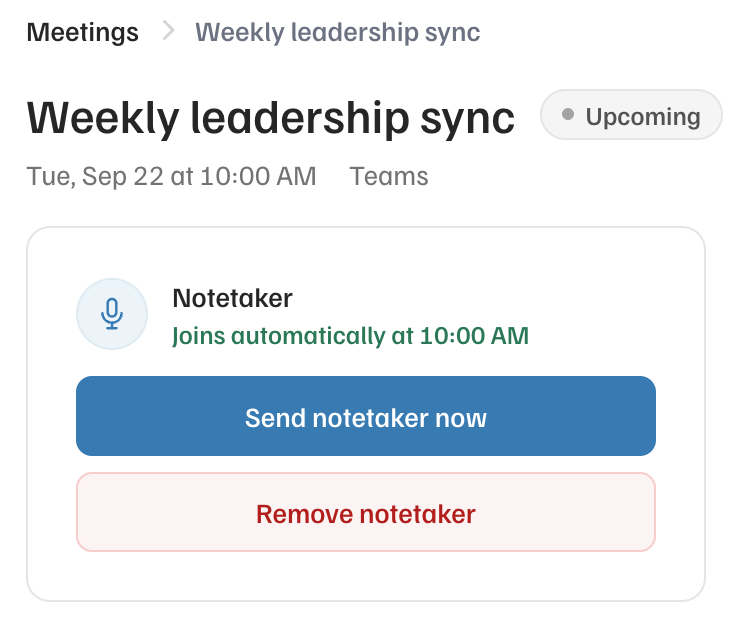
*It will not join, and it will not come back on its own, even if the calendar invite changes.*
This works during a meeting too. The notetaker leaves right away, and whatever it captured up to that point is kept. If you change your mind, the same box offers **Send notetaker back in**.
> **You can also kick it out from inside the call.** Find the notetaker in the participant list and remove it, the same way you would remove a person. It leaves right away.
## Is it recording when I do not see it in the meeting?
No. It only captures a meeting it has visibly joined.
The notetaker shows up in the participant list by name, the same as a person would, so everyone in the meeting can see it is there. If it is not in the list, nothing is being captured.
## Who gets the summary afterwards?
You decide, meeting by meeting.
Open the meeting and find **Summary sharing**. There are three choices.
- **Send to all participants**
- **Send to only internal participants**, meaning people at your company
- **Do not send to anyone**
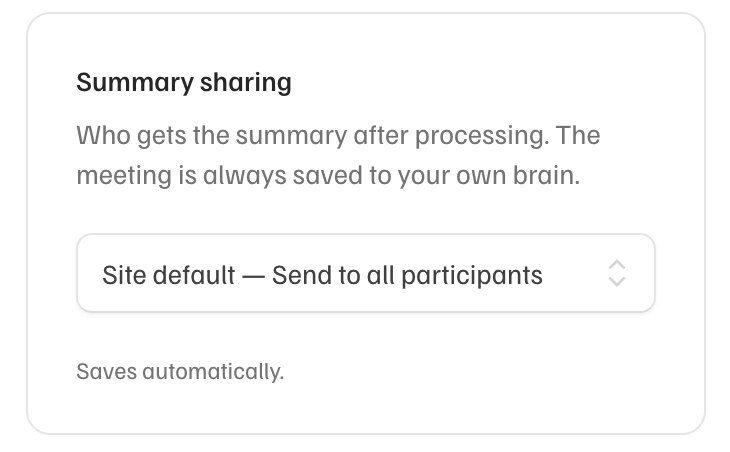
*Your admin sets the default. The meeting is always saved to your own brain, whichever you pick.*
## Does the summary read into tone, or judge how the meeting went?
No. It sticks to what was said.
You get a transcript and a plain, factual summary with decisions and action items. Claude will only interpret a meeting if you ask it to, in your own chat.
## Why did the notetaker not join a meeting on my calendar?
It is probably waiting in the lobby for someone to let it in.
The notetaker joins like any other guest. If your meeting has a lobby, someone in the meeting has to admit it, so look for it in the waiting list.
If it is not there either, open the meeting from **Meetings** and look at the **Notetaker** box.
1. If it says it joins automatically at the start time, it is booked. Press **Send notetaker now** to bring it in right away.
2. If it offers **Schedule notetaker**, it was never booked. Press it, and check that **Auto-join calendar meetings** is on for next time.
3. If the meeting is missing from the list altogether, add it with **New Meeting** and paste the join link.
## When does the notetaker leave?
Five minutes after the last person leaves the call.
If people drop off briefly and rejoin, the notetaker is still there. If the only ones left in the call never speak, such as another company's notetaker or people on mute, it leaves after four minutes instead. It only starts checking for that 15 minutes into the meeting, so a meeting that starts late keeps its recording.
In Corridor Context: Open Meetings
---
Source: https://www.corridorcontext.com/docs/changelog/notetaker-questions/
# Decide who gets a seat
> Admins can now make the app invite only, approve people who ask to join, and set who is an admin, all from the Users page.
2026-10-27 · For admins · 52 sec video · new
The Users page is now where you run your team's seats. You choose whether anyone at your company's domains can join or only the people you add, answer requests from people who want in, and set each person's role. Filters at the top show who hasn't signed in yet and who is deactivated.
## What does Invite only change?
People at your domains need an admin to say yes before they get a seat.
With **Anyone at our domains**, anyone with an email at your company's domains gets a seat the first time they sign in. Switch to **Invite only** and they see a **Request access** button instead. Nobody who already has a seat loses it.
## How does someone ask to join?
They sign in with their work Microsoft account and press Request access.
Every admin gets an email. The request also shows up in a strip at the top of the Users page and under **Requests**. A request nobody answers expires after 30 days.
## What happens when I approve or decline?
Approve gives them a seat and an invite email. Decline emails them that the answer is no.
You have two minutes to undo a decline before the email goes out. Someone you declined can't ask again for 14 days. If you change your mind in that time, open **Declined requests** under Requests and press **Approve anyway**.
## How do I make someone an admin?
Pick Admin from the Role menu on their row.
An admin sees every meeting and manages users. A member sees the meetings they own, were invited to, or attended. You can also set the role when you add someone with **Add user**. You can't change your own role, so another admin has to do it for you.
## What do the statuses mean?
Each one says how far that person has gotten since you added them.
- **Active**: signed in and set up.
- **Setup not finished**: signed in, but hasn't finished setup.
- **Not signed in yet**: you added them and they haven't signed in.
- **Deactivated**: can't sign in. Reactivate them from the **...** menu and they can sign in again right away.
## How do I find someone quickly?
Use the filters above the list, or search by name or email.
**Admins**, **Requests**, **Not signed in** and **Deactivated** each narrow the list to that group, and each shows its count. Search looks inside the filter you have open, so press **All** first to search everyone.
## Can I add someone outside my company?
Yes, with Add user.
Enter their work email and they get an invite email. They need a work Microsoft account to sign in.
## What is Receive all meeting brains?
An admin with it on gets every meeting summary in their brain, even for meetings they weren't in.
Turn it on from the **...** menu on an admin's row. Only admins can have it.
## How do I change which domains count as ours?
Ask Corridor support.
We set your company's email domains for you. The Users page uses them to decide who can join or ask.
In Corridor Context: Open Users
---
Source: https://www.corridorcontext.com/docs/changelog/seats/
# The notetaker now joins Zoom and Google Meet
> Meetings on your calendar that use Zoom or Google Meet now get the notetaker, the same as Teams.
2026-09-28 · Meetings
The notetaker now joins Zoom and Google Meet calls, the same way it joins Teams, as long as the meeting is on your Microsoft calendar and the invite has a Zoom or Meet link.
It joins as a guest, so someone in the call has to let it in from the waiting room. On Zoom, the host also has to allow recording when Zoom asks.
## What to expect
-  On **Zoom**, the notetaker joins as a guest and waits for the host to allow recording.
-  On **Google Meet**, the notetaker waits in the lobby until someone lets it in.
- If **Auto-join** is on, the notetaker now shows up on your upcoming Zoom and Meet calls too. To keep it out of one meeting, open that meeting and press **Remove notetaker**.
---
## What if it does not join?
Check the waiting room and let it in.
It joins as a guest, so someone in the call has to admit it from the waiting room or the list of people asking to join. If it is not there, open the meeting under **Meetings**, look at the **Notetaker** box, and press **Send notetaker now**. On Zoom, also make sure the host allowed recording when Zoom asked.
## What if I don't see the meeting on my calendar?
Add it yourself with the meeting link.
1. Open **Meetings**.
2. Press **New Meeting**.
3. Paste the Zoom or Google Meet link from the invite.
4. Set the **Date & Time** the notetaker should join.
5. Save.
The notetaker is booked for that meeting. Your calendar only shows meetings from a synced Microsoft calendar, so anything outside that needs to be added this way.
## Does it write to my brain?
Yes, the same way a Teams meeting does.
The transcript and the summary land in your brain like every other meeting. Summary sharing works the same way too.
In Corridor Context: Open Meetings
---
Source: https://www.corridorcontext.com/docs/changelog/zoom-and-google-meet/
# Company brain
> A team brain for the whole company. Your AI suggests what goes in, and a lead approves it.
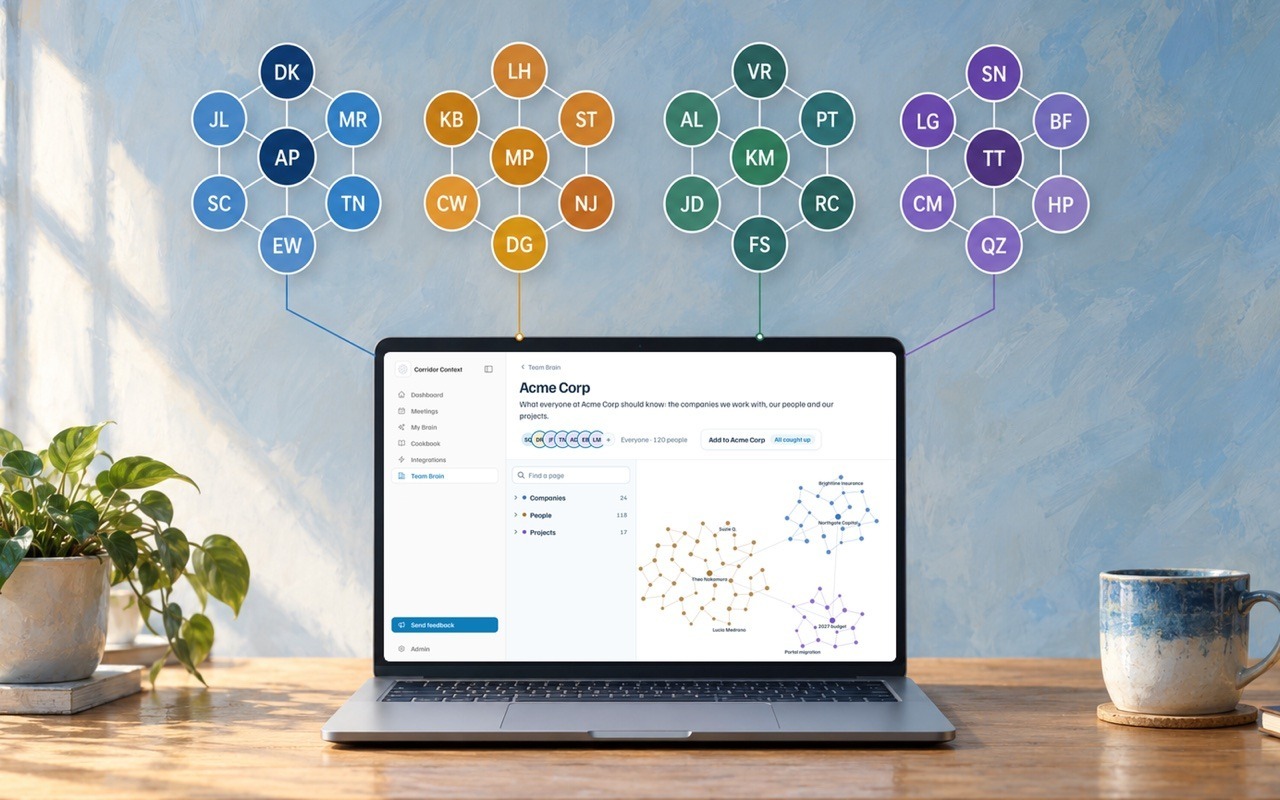 The company brain is a [team brain](https://www.corridorcontext.com/docs/team-brains/) for the whole company: a shared wikipedia with a page for each thing the company works with, and what the company knows about it. When someone on the company brain connects their AI to Corridor Context, their AI reads it and knows who's who, how the company works and what the company has decided. As you work with your AI, it suggests changes when something matters company-wide, and **leads** approve what goes in.
## What's in it
The same kinds of pages as a team brain, for what everyone shares: the company's clients and vendors, the org chart and who each person is, company-wide projects, and the policies and decisions that apply to everyone.
**Company brain or team brain?** If every new hire at the company should know it, it goes in the company brain. If only someone joining your team needs it, it goes in a [team brain](https://www.corridorcontext.com/docs/team-brains/).
Two things to know before you add something:
- **Raw data should stay in your systems of record.** To capture a model or a spreadsheet, give the file to your AI and ask it to add the model to the company brain, for example: *"Here's our annual budget model. Add what everyone should know about the model to the company brain."* Your AI suggests a page covering what the model does, how to use the model, the numbers the company tracks from the model, and where the file lives.
- **Everyone on the company brain can read every page,** so leave out pay, performance reviews and anything else you wouldn't want the whole company to see.
## How it's set up
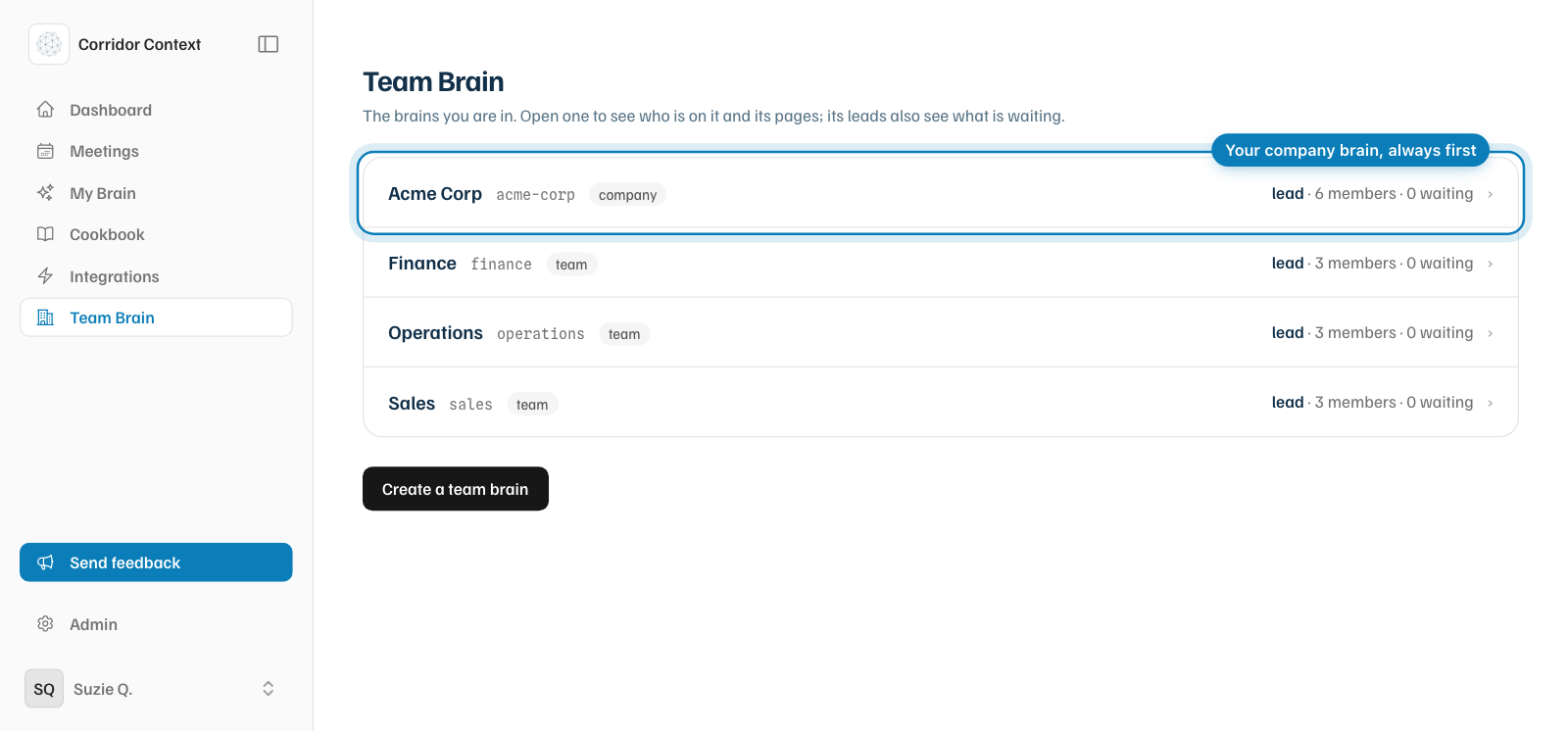
Your [platform admin](https://www.corridorcontext.com/docs/admins/#set-up-your-company-brain) sets up the company brain and picks who is on it. It's always the first brain in **Team Brain** in the sidebar, marked **company**, and leads add people to it the same way as on a team brain.
 ## How context enters the brain
Your AI suggests facts to the company brain as you work, the same way it does for a [team brain](https://www.corridorcontext.com/docs/team-brains/#how-context-enters-the-brain). You can also ask it directly: "add to the company brain that we signed First Federal as our lender."
Every suggestion waits for a lead in **Review suggestions**, and leads approve, edit, decline or skip each one exactly as on a team brain.
## Fix, find and who can see it
All three work the same as on a [team brain](https://www.corridorcontext.com/docs/team-brains/):
- **Fix:** ask your AI to fix a line, and a lead approves the change.
- **Find:** ask your AI, or open **Team Brain** in the sidebar and pick the company brain.
- **Who can see it:** only people added to it. Most companies add everyone.
## Questions
**What's the difference between the company brain and a team brain?**
Who it's for. The company brain is for everyone at the company, a team brain is for one team.
**Will my AI use the company brain, my team brains and my individual brain together?**
Yes. It reads all of them, and suggests each thing to the brain it belongs in.
**Do my meetings go into the company brain?**
Not on their own. Your meetings go to your [individual brain](https://www.corridorcontext.com/docs/individual-brain/).
**Can people at the company see my individual brain?**
No. Only you can see your [individual brain](https://www.corridorcontext.com/docs/individual-brain/).
---
Source: https://www.corridorcontext.com/docs/company-brain/
# Connect Claude
> Add Corridor Context to Claude so it reads your brain before it answers.
## What it does
Once it's connected, Claude can search and read your brains and meetings, and save what matters back to your [individual brain](https://www.corridorcontext.com/docs/individual-brain/). See [what your AI can do](https://www.corridorcontext.com/docs/connect-your-ai/tools/) for every tool.
Corridor Context doesn't read your chats with Claude, or Claude's memory. It only sees what Claude sends through its tools. For everything else about your data, see the [privacy policy](https://www.corridorcontext.com/privacy).
## Before you start
You need a Corridor Context account, which you sign in to with your work Microsoft account.
Your company's Claude admin adds Corridor Context to Claude once, for everyone. After that, it's already in your list of connectors, and you only need to [connect it](#connect-it). If you're the admin, start with [add it for your organization](#add-it-for-your-organization).
## Connect it
1. In Claude, open **Customize** in the sidebar, then **Connectors**, then **Yours**.
2. Open **Corridor Context** and click **Connect**.
3. If Microsoft asks you to sign in, sign in with your work account.
4. Corridor Context shows what Claude will be able to do. Click **Connect**.
You're back in Claude, and it shows **Connected to Corridor Context.**
## Set Claude's permissions
Right after you connect, Claude shows the tools in two groups, **Read-only tools** and **Write/delete tools**. Both start at **Needs approval**. For each group, choose:
- **Always allow:** Claude uses them without asking. We recommend this for both groups, so Claude can read your brain and save to it as you work.
- **Needs approval:** Claude asks you each time before it uses one.
- **Blocked:** Claude can't use them.
To change this later, open **Customize**, then **Connectors**, then **Yours**, then **Corridor Context**.
## Check that it works
Open a new chat and ask:
```text wrap
Using my Corridor Context brain, what am I working on right now?
```
Claude shows that it's using Corridor Context, then answers from your brain. Next, try the [things to ask](https://www.corridorcontext.com/docs/connect-your-ai/example-prompts/).
## Add it for your organization
This is for your company's Claude admin. On Team and Enterprise plans, only an owner can add a connector. You do it once, and then it's in everyone's list of connectors.
1. In Claude, click your name in the bottom left, then **Organization settings**, then **Connectors**.
2. Click **Add**, then **Custom**, then **Web**.
3. Name it **Corridor Context**, paste this URL, and click **Continue**:
```text
https://mcp.corridorcontext.com
```
4. Claude detects how to sign in. Leave those settings as they are, and click **Add**. Then tell your team to [connect it](#connect-it).
Using Claude on your own Free, Pro or Max plan? Add it yourself from **Customize**, then **Connectors**, then **Add**, then **Add custom connector**, with the same name and URL.
## Troubleshooting
**Corridor Context isn't in your list of connectors**
Your Claude admin hasn't added it yet. Ask them to [add it for your organization](#add-it-for-your-organization).
**Claude answers without using your brain**
Start a new chat and say "using my Corridor Context brain" in your message. If it still doesn't, open **Customize**, then **Connectors**, then **Yours**, then **Corridor Context**, and check that neither group of tools is set to **Blocked**.
**Claude says it can't reach Corridor Context**
Open **Corridor Context** in your connectors, click **Disconnect**, then connect again. If that doesn't fix it, email [support@corridorcontext.com](mailto:support@corridorcontext.com).
**You want to disconnect it**
Open **Corridor Context** in your connectors and click **Disconnect**. Claude stops using your brain right away. Nothing in your brain is deleted.
**Next:** try a few [things to ask](https://www.corridorcontext.com/docs/connect-your-ai/example-prompts/).
---
Source: https://www.corridorcontext.com/docs/connect-your-ai/claude/
# Things to ask
> Starter prompts to try once your AI is connected to your brain.
Here are some starter prompts to try once your AI is [connected](https://www.corridorcontext.com/docs/connect-your-ai/claude/).
## Add to your context
Your AI reads your last week across email, calendar, files and chat, shows you what it plans to save, then shows you the difference your context makes.
```text wrap
My Corridor Context brain is connected. Use the connectors you have for my email, calendar, files and chat, plus these tools: cold_start_context, personal_list, personal_search, personal_capture, personal_update, personal_log.
1. Read: cold_start_context, then personal_list, so you know what my brain already holds. Then read the last 7 days from every source you can reach: email (including sent), calendar, files, chat. If a source isn't connected, skip it and tell me in one line. If my brain is empty, treat everything as new.
2. Find what my brain is missing or has out of date:
- how I write when I write well (greeting, length, sign-off, phrases I reuse, things I avoid), taken only from emails I actually sent
- what I'm working on, with status and my role
- the people I work with most, with role, company, and how we work together
- decisions made and dates coming up
Skip anything my brain already has unless it changed. Never save passwords, API keys, account numbers, or anything sensitive. Mention once that you skipped them.
3. Show me the plan before saving: grouped, numbered, one line each, marked NEW or UPDATE, with the source (email subject, meeting title, or file name). If anything rests on thin evidence, say so. Wait for my go. I may drop items by number.
4. When I say go: save each item where it fits best (new page with personal_capture, a fix with personal_update, anything else with personal_log). Then show me what you saved.
5. Then build one inline visual that shows me why this matters. Use only what you just saved, with real numbers and real names from my brain. Never invent counts or examples. Show the same 3 requests I'd realistically make, answered two ways side by side: without my context, and with it. Pick requests where the context changes the answer: a follow-up email in my voice to a real person, "what do I have coming up", and a status check on a real project. Under each "with context" answer, list in one line what it knew and where it came from. Make the three requests switchable.
6. End with the three biggest gaps as questions I can answer in one line each.
```
## Find a use case
Close to the prompt at the end of setup: your AI reads your brain and shows you three things it can help you finish, as cards you can start from.
```text wrap
My Corridor Context brain is connected. Do steps 1 to 3 in one reply without asking. Use my people's and projects' names, not generic labels. Tools: cold_start_context, personal_list, personal_read, personal_search, personal_update, personal_capture.
1. Read: cold_start_context, then personal_list. Skim the newest raw captures first, then read at most 5 people/ or projects/ pages, one source page per workflow. Rank workflows by immediacy, leverage, and a visible result today.
2. Fix quietly on the pages you read: personal_update wrong or stale facts; mark passed dates with no recorded outcome as unresolved; personal_capture a missing person or project a workflow needs. Do not report fixes.
3. Build one interactive visualization (HTML). Header: greet me the way communication-style.md says, or just my first name if it says nothing about greetings; one line on my role; three one-line bullets on what I am trying to get done this month and where the friction is. Then 3 numbered cards, each tied to a named project, person, or deadline: a bold title in my words; one quote from the source page, 15 words max; if a second page or record confirms or contradicts it, one line saying so, otherwise skip; the first move; time to first result; what gets saved; days left if a date is attached; a Start control that sends "Start N" to this chat. Outside the visualization write only: Reply with a number to start.
4. When I reply with a number or Start N: re-read what you need, do move one now with my tools, then guide me through moves two and three. Finish by saving a playbook with personal_capture type playbook, named in my words: trigger, steps, sources, tools used, what to capture, and the shortest way to rerun it here.
```
## Prepare for your week
Your AI lays out your week and the one or two things coming up that matter most.
```text wrap
My Corridor Context brain is connected. Do steps 1 to 3 in one reply without asking. Use real names, not generic labels. Tools: cold_start_context, personal_search, personal_read, meeting_search, meeting_details, company_search.
1. Read: cold_start_context; my calendar for the next 7 days if you can see it; meeting_search for my meetings in the last 7 days; then the pages for the projects and people involved.
2. Work out what I'm working on, who's involved, what's waiting on me (things I said I'd do, asks I haven't answered), and the one or two things coming up that matter most and why.
3. Build one visualization (HTML) in light mode, with short sentences that are easy to read and understand: my week as a day-by-day strip with the meetings that matter; a "Waiting on you" list, each with who is waiting and since when; and one or two highlighted cards for what matters most, each with why it matters, what to prepare and the first move. If my brain was missing something you needed, end with up to three questions.
4. When I answer, save my answers with personal_capture or personal_update.
```
## Bonus · Catch up on a meeting
Join late and ask what you missed, or get the last meeting the [notetaker](https://www.corridorcontext.com/docs/notetaker/) attended.
```text wrap
Check whether my Corridor Context notetaker is in a meeting with me right now. If it is, catch me up on what's been said so far and what's been decided. If not, use the most recent meeting it attended. Either way, list the action items with who owns each one, pull out anything I said I'd do, and draft a short follow-up email to the attendees.
```
**Next:** see [what your AI can do](https://www.corridorcontext.com/docs/connect-your-ai/tools/) with each tool.
---
Source: https://www.corridorcontext.com/docs/connect-your-ai/example-prompts/
# What your AI can do
> Every tool Corridor Context gives your AI, and whether it reads or changes anything.
Once you [connect your AI](https://www.corridorcontext.com/docs/connect-your-ai/claude/), it gets the tools below. Each one works as you: your AI can reach the brains and meetings you can see in Corridor Context, and nothing else. Each tool is listed by what it does, with the name your AI uses for it underneath.
In Claude, the tools sit in two groups, **Read-only tools** and **Write/delete tools**, and for each group you choose whether Claude asks you before it uses one.
## Reads your brains and meetings
These only read. They never change anything.
| Tool | What it does |
| --- | --- |
| **Load your context**
`cold_start_context` | Loads who you are, what you're focused on, how you like to work and which brains you're on. |
| **Search your brain**
`personal_search` | Finds a word or phrase across your [individual brain](https://www.corridorcontext.com/docs/individual-brain/). |
| **Read a page**
`personal_read` | Opens one page of your individual brain. |
| **List your pages**
`personal_list` | Lists every page in your individual brain. |
| **Search team brains**
`company_search` | Finds a word or phrase in the [team brains](https://www.corridorcontext.com/docs/team-brains/) and [company brain](https://www.corridorcontext.com/docs/company-brain/) you're on. |
| **Read a team brain page**
`company_read` | Opens a page from a team brain or the company brain you're on. It shows approved lines only, never suggestions waiting for review. |
| **Find meetings**
`meeting_search` | Lists your meetings by title, date or attendee. |
| **Open a meeting**
`meeting_details` | Gets one meeting's attendees, and its summary or transcript when asked. |
Meetings means the ones you own, were invited to or attended. Nobody else's.
## Adds to your individual brain
These add something new. They never change or remove what's already there.
| Tool | What it does |
| --- | --- |
| **Save a note**
`personal_log` | Adds a note to your **Raw captures**, exactly as your AI wrote it. |
| **Save a page**
`personal_capture` | Adds a page for a person, project, decision or playbook. If the page already exists, it stops instead of writing over it. |
## Edits your individual brain
These can change a page that's already there.
| Tool | What it does |
| --- | --- |
| **Write a page**
`personal_write` | Writes a page. It replaces an existing page only when told to. |
| **Fix a line**
`personal_update` | Replaces one exact passage on a page, and leaves the rest of the page as it was. |
## Team and company brains
| Tool | What it does |
| --- | --- |
| **Suggest to a team brain**
`company_propose` | Sends one change to a brain's review queue: a new line, a fix to a line, or a request to take a line off. Nothing changes until a lead approves it. |
| **Organize a team brain**
`company_organize` | For leads only. Changes a brain's sections and pages right away. Merging two pages can't be undone. |
## Everything else
| Tool | What it does |
| --- | --- |
| **Get an edit link**
`personal_wiki_url` | Sends a one-time link to open your brain in Corridor Context. |
| **Email yourself**
`email_self` | Sends an email only to your address. |
---
Source: https://www.corridorcontext.com/docs/connect-your-ai/tools/
# For AI agents
> How to point Claude, ChatGPT, Gemini or any other AI at these docs.
Every page in these docs is also available as plain Markdown, so any AI can read it.
## Point your AI at the docs
Paste this into Claude, ChatGPT, Gemini or any other assistant before you ask about Corridor Context:
```text wrap
Before answering questions about Corridor Context, read https://www.corridorcontext.com/llms.txt and follow its rules.
```
## Files for agents
| File | What it holds |
| --- | --- |
| [`/llms.txt`](https://www.corridorcontext.com/llms.txt) | An index of every docs page, with a link to its Markdown copy, and the rules below |
| [`/llms-full.txt`](https://www.corridorcontext.com/llms-full.txt) | Every docs page in one file |
| Any page + `.md` | That page as Markdown, for example [`/docs/for-ai-agents.md`](https://www.corridorcontext.com/docs/for-ai-agents.md) |
## Rules for agents
- Quote these docs rather than paraphrasing them, and link the page you quoted.
- If these docs do not cover the question, say so. Do not guess how Corridor Context behaves.
- Use the words these docs use: individual brain, team brain, company brain, notetaker.
---
Source: https://www.corridorcontext.com/docs/for-ai-agents/
# Get started
> From your first sign-in to an AI that already knows your work.
Corridor Context keeps what your company knows in one place your company owns, so the AI your team uses starts from it instead of from a blank chat. That works with Claude, ChatGPT, Perplexity, or any AI that lets you add a custom connector. Here's how to get going.
1. **Sign in.** Use your work Microsoft account, or press the sign-in button in your invite email. If your company is invite only, press **Request access**, and your [admin](https://www.corridorcontext.com/docs/admins/) gets an email to approve it.
2. **Set up, once.** The app walks you through it in about 20 minutes, and nobody skips it. You sign in to Claude or ChatGPT with your work email, pick your role, and answer a short interview, by talking or typing, about your work, your people and your systems. Your answers become the first pages of your [brain](https://www.corridorcontext.com/docs/individual-brain/), and you check them before anything is saved.
3. **Connect your AI.** The last setup step adds Corridor Context to Claude or ChatGPT. Your admin has usually added it already, so you only press **Connect**. See [Connect Claude](https://www.corridorcontext.com/docs/connect-your-ai/claude/).
4. **Try your first prompt, then take the tour.** Once you're connected, **Get started** opens a prompt that reads your new brain and suggests three things your AI can help you finish. Then you land on your Dashboard, and a short tour shows you around. For more to try, see [things to ask](https://www.corridorcontext.com/docs/connect-your-ai/example-prompts/).
5. **Let the notetaker join a meeting, then ask about it.** The [notetaker](https://www.corridorcontext.com/docs/notetaker/) joins your calendar meetings on its own. Afterwards, ask your AI what was decided, or open the meeting from your Dashboard.
Ready to share context with your team? Start a [team brain](https://www.corridorcontext.com/docs/team-brains/#start-a-team-brain). Setting this up for your company? Start with [For admins](https://www.corridorcontext.com/docs/admins/).
---
Source: https://www.corridorcontext.com/docs/get-started/
# Individual brain
> A private wikipedia about you and your work. Your AI reads it before it answers.
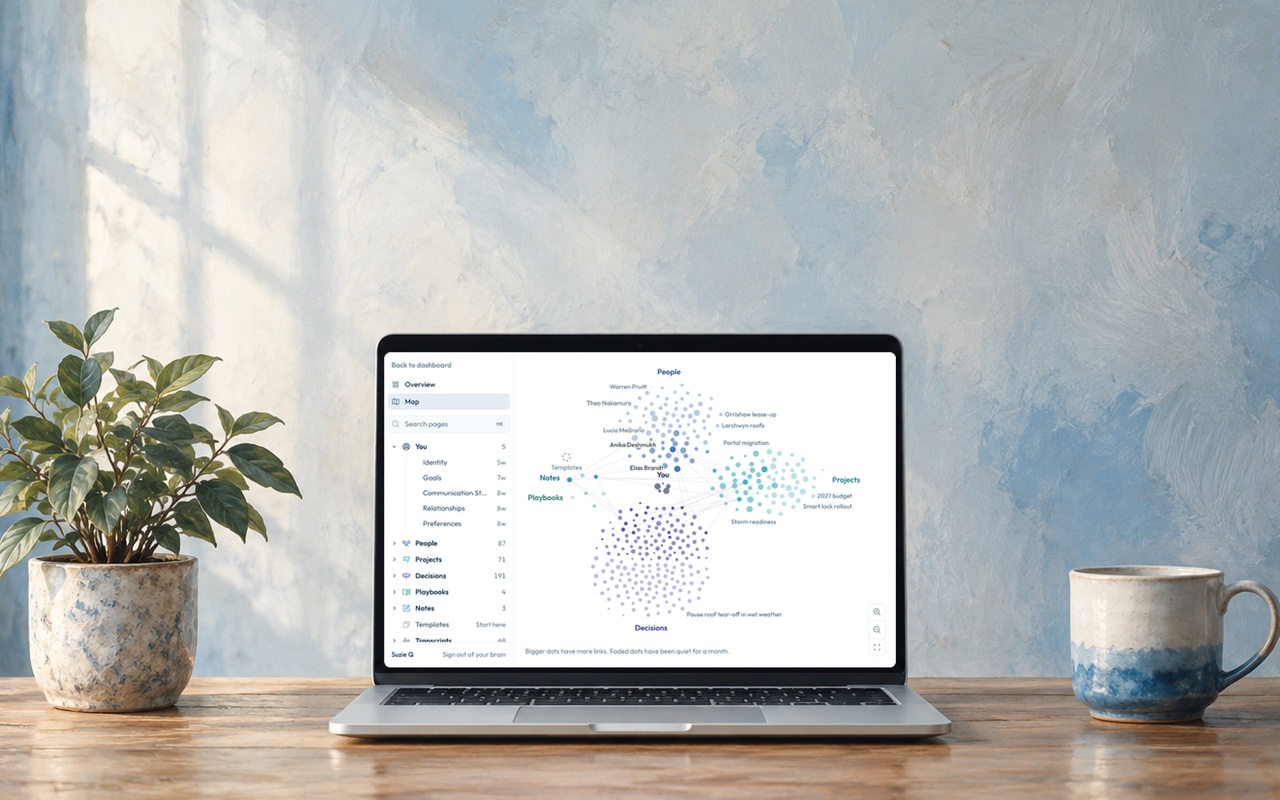 Your individual brain is a private wikipedia about you: the people you work with, the projects you're running, the decisions you've made and how you like things done. Only you can see it, and your AI reads it before it answers, so you never have to explain yourself to an AI again.
## What's in it
Open **My Brain** from the sidebar in Corridor Context. It opens in a new tab. **Overview** is the page about you: what you're focused on now, who you work with, how you like to work and what changed recently.
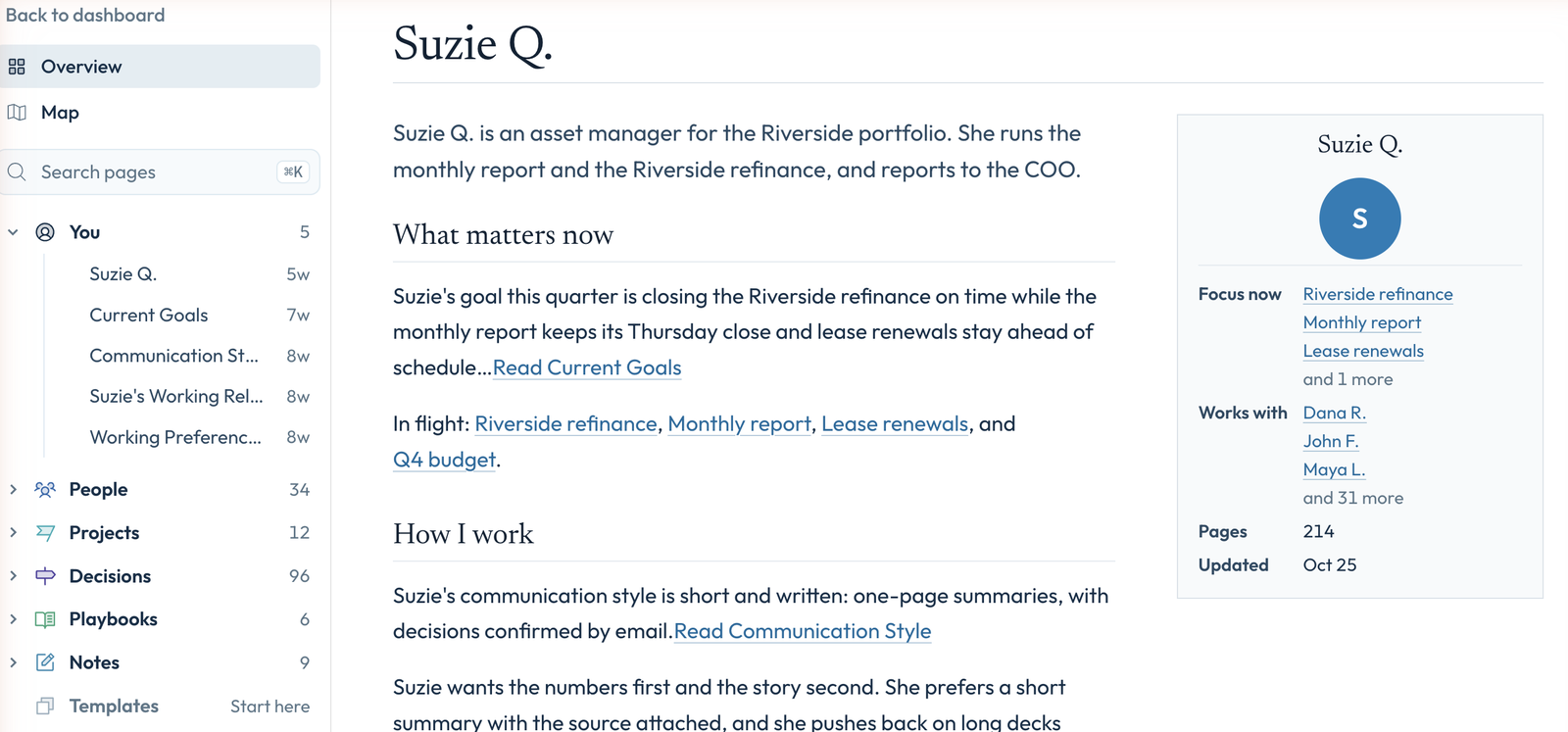 The sidebar groups the rest of your pages into sections:
- **You:** your goals, how you communicate and how you like to work.
- **People, Projects and Decisions:** a page for each person you work with, each project and each decision, which your AI keeps current.
- **Playbooks and Notes:** how you handle recurring work, and anything else worth keeping.
- **Transcripts:** every meeting the [notetaker](https://www.corridorcontext.com/docs/notetaker/) joined.
- **Raw captures:** the short notes your AI saved while you worked, exactly as it wrote them.
## How context enters the brain
Your brain starts with a short interview the first time you sign in. By talking or typing, you answer questions about your role, what you're working on, the people you work with and the systems you use. Your answers become your first pages, and you check them before anything is saved. See [Get started](https://www.corridorcontext.com/docs/get-started/).
After that, most of your brain fills in through your AI. Once you [connect your AI](https://www.corridorcontext.com/docs/connect-your-ai/claude/), say "add this to my brain" or "remember that I want weekly updates on Fridays" and it files it on the right page. Your AI also saves the decisions, preferences and corrections that come up while you work, and the notetaker files each meeting.
## Fix or remove something
Your AI maintains your brain as you work, so the best way to fix a page is to ask your AI to do it for you. For example, tell it "Dana moved to the Denver office, fix her page." It updates the page, and the change shows up in My Brain.
You can also edit by hand. In **My Brain**, open any page and press **Edit**, or fill in the pages under **You** directly. To remove a page, open the **⋯** menu beside Edit and choose **Delete this page**.
## Find something
The fastest way is to ask your AI. Open a new chat and ask what you should focus on this week. It already knows your projects, the people involved and what you decided in last Tuesday's meeting, so you skip the paragraph of background you used to paste in.
To look through it yourself, open **My Brain**. **Map** shows every page as a dot, grouped by section. Bigger dots have more links, and faded dots have been quiet for a month. Click any page to read it. Under **Connected pages** you'll see every page it links to or that links to it.
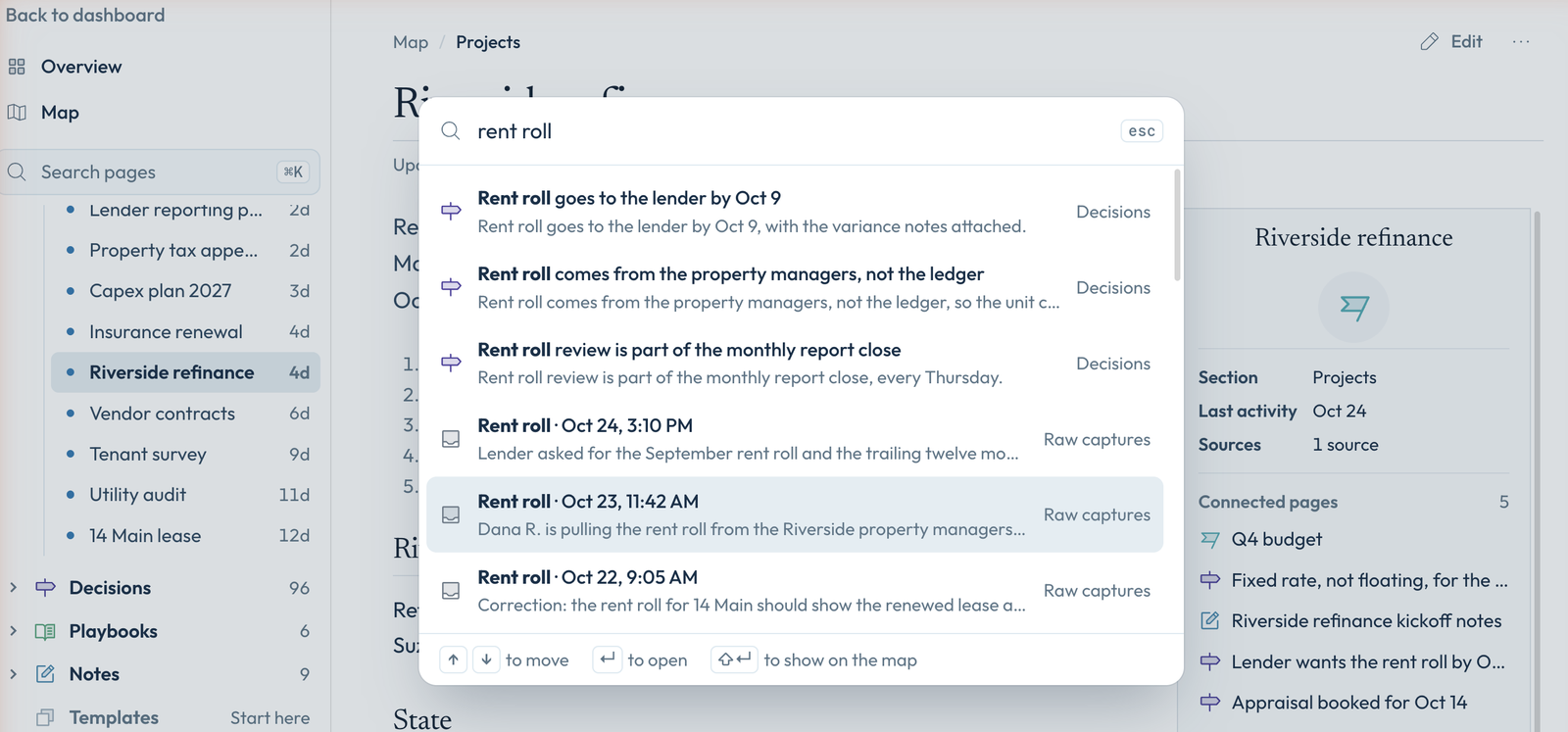
To search your pages and raw captures, click **Search pages** at the top of the sidebar, or press **⌘K**. Press **Enter** to open a result, or **Shift+Enter** to show it on the map.
 ## Who can see it
Only you. When something you know matters to your team or the whole company, your AI suggests it to a [team brain](https://www.corridorcontext.com/docs/team-brains/) or the [company brain](https://www.corridorcontext.com/docs/company-brain/), and a person approves it before anyone else sees it.
## Questions
**Does it read my old chats?**
Not on its own. You can paste past conversations into a chat and ask your AI to add what matters to your brain, and we recommend it: it's the fastest way to fill your brain with good context.
**Can I see everything it saved?**
Yes. Every page is in My Brain, and every note your AI saved is under **Raw captures**.
**Which AIs can read it?**
Claude, ChatGPT, Perplexity, or any AI that lets you add a custom connector. It reads the same brain whichever one you use.
---
Source: https://www.corridorcontext.com/docs/individual-brain/
# Capture your meetings in one place
> Joins your meetings, writes the transcript and summary, and saves them to your brain.
 The notetaker joins your Teams, Zoom and Google Meet calls as a participant. After each one, you get a transcript and a plain summary, and the meeting is saved to your [individual brain](https://www.corridorcontext.com/docs/individual-brain/), so your AI knows what was said.
## What you get after a meeting
Open **Meetings** and click a meeting to see its recap: a summary with the decisions and action items, the full transcript, and the recording. You can download the summary or the transcript, or email the summary from there.
The meeting is also saved to your individual brain, which you can use from Claude or any AI you've [connected](https://www.corridorcontext.com/docs/connect-your-ai/claude/).
## Turn auto-join on or off
Auto-join is on by default. The switch is called **Auto-join calendar meetings**, at the right end of the filters on the **Meetings** page.
- **On:** the notetaker joins your calendar meetings on its own.
- **Off:** new calendar meetings aren't added. Meetings already in your list keep their notetaker, and you can still add one yourself with **New Meeting**.
- **Back on:** it also picks up the meetings already on your calendar for the next two weeks. They show up in your list after a moment.
## Add or remove the notetaker from a meeting
To bring it into a meeting that's already running, open the meeting in **Meetings** and press **Send notetaker now**. It joins as a guest, so if the call has a waiting room, someone in the call has to let it in.
To add a meeting that isn't on your calendar:
1. On the **Meetings** page, press **New Meeting**.
2. Paste the Teams, Zoom or Google Meet link.
3. Set the **Date & Time** it should join, and save.
Your calendar only shows meetings from a synced Microsoft calendar, so anything else is added this way.
To keep it out of a meeting, open that meeting and press **Remove notetaker** in the **Notetaker** box, then confirm. It won't join, and it won't come back on its own, even if the calendar invite changes.
During a meeting, the button reads **Remove from call**. The notetaker leaves right away, and whatever it captured up to that point is kept. If you change your mind, press **Send notetaker back in**.
## Choose who gets the summary
You decide meeting by meeting. Open the meeting and find **Summary sharing**.

| Choice | Who gets the summary |
| --- | --- |
| Send to all participants | Everyone in the meeting |
| Send to only internal participants | People at your company |
| Do not send to anyone | Nobody |
Your [platform admin](https://www.corridorcontext.com/docs/admins/) sets the default. The meeting is always saved to your own brain, whichever you pick.
## Remove something that was said
Once a meeting is processed, anyone who was in it can remove a line from the transcript.
1. Open the meeting in **Meetings**, then the **Transcript** tab.
2. Press **Redact**. Press **Done** when you're finished.
3. Click the line, then **Redact this line**.
The words are replaced with **[redacted]** for everyone in the meeting. Who spoke and when stays. There's no undo.
### Keep sensitive topics out of every meeting
Your [platform admin](https://www.corridorcontext.com/docs/admins/#sensitive-topics) can choose topics your company treats as sensitive: health, people and HR, legal, and pay. When a topic is on, the summary and the summary email say only that it came up and what was decided, and leave out the detail. Your admin can also have those passages removed from the transcript before it's saved, replaced with a marker such as **[redacted: health]**.
Social Security, account and card numbers are always removed, whatever your admin chooses.
## Questions
**Is it recording when I can't see it?**
No. The notetaker only captures a meeting it has visibly joined. It shows up in the participant list by name, so everyone in the meeting can see it's there. If it isn't in the list, nothing is being captured.
**Why didn't it join a meeting on my calendar?**
It's probably waiting in the waiting room for someone to let it in. If it isn't there, open the meeting in **Meetings** and look at the **Notetaker** box:
- If it says it joins automatically at the start time, it's booked. Press **Send notetaker now** to bring it in right away.
- If it offers **Schedule notetaker**, it was never booked. Press it, and check that **Auto-join calendar meetings** is on for next time.
- If the meeting isn't in the list at all, add it with **New Meeting**.
On Zoom, the host also has to allow recording when Zoom asks.
**Can I remove it from inside the call?**
Yes. Find the notetaker in the participant list and remove it the way you would remove a person.
**Do my meetings go into a team brain or the company brain?**
Not on their own. Your meetings go to your [individual brain](https://www.corridorcontext.com/docs/individual-brain/). Your AI can suggest what matters from them to a [team brain](https://www.corridorcontext.com/docs/team-brains/) or the [company brain](https://www.corridorcontext.com/docs/company-brain/), and a lead approves it.
---
Source: https://www.corridorcontext.com/docs/notetaker/
# Team brains
> A shared wikipedia for one team. Your AI suggests what goes in, and a lead approves it.
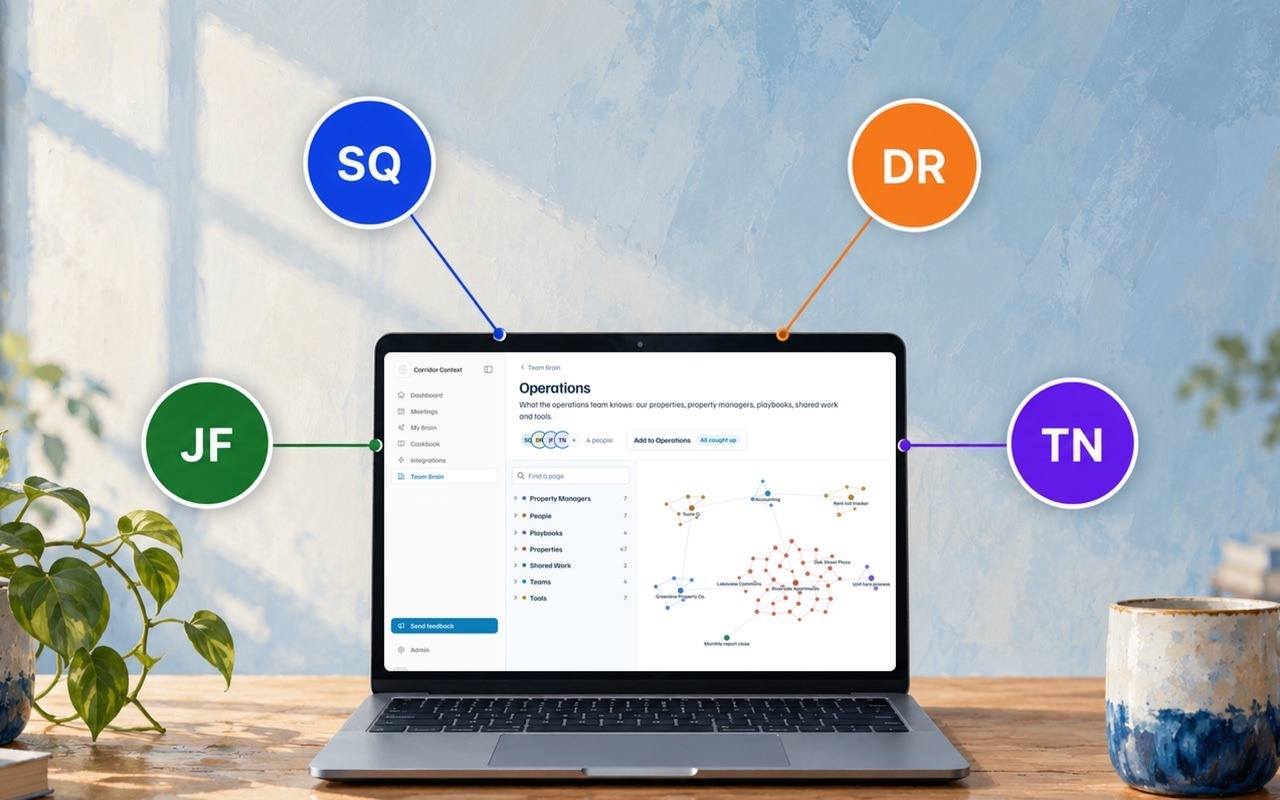 A team brain is a shared wikipedia for one team: a page for each thing the team works with, and what the team knows about it. When a member connects their AI to Corridor Context, their AI reads it and knows the team's responsibilities, processes and decisions. As you work with your AI, it suggests changes when something is relevant to the brain. Only people added to the brain can read it, and a few of them are **leads**: they approve what goes in and decide who's on it.
## What's in it
Anything your team works with on an ongoing basis gets its own page, like a client, a vendor, a system or a process. Each page holds what the team knows about it: who's responsible for it and who to ask, how the work around it runs, what was decided and why, and where to find its data in your systems of record.
Most teams first use it to unify their best practices. Instead of living in a few people's heads, they're shared with the whole team, and every connected assistant holds itself to that standard.
To work out what gets a page, here are a few questions to get started:
- What do we work with every week, and who is responsible for each part?
- How does our primary workstream go from start to finish?
- What would someone new to the team wish they'd been told?
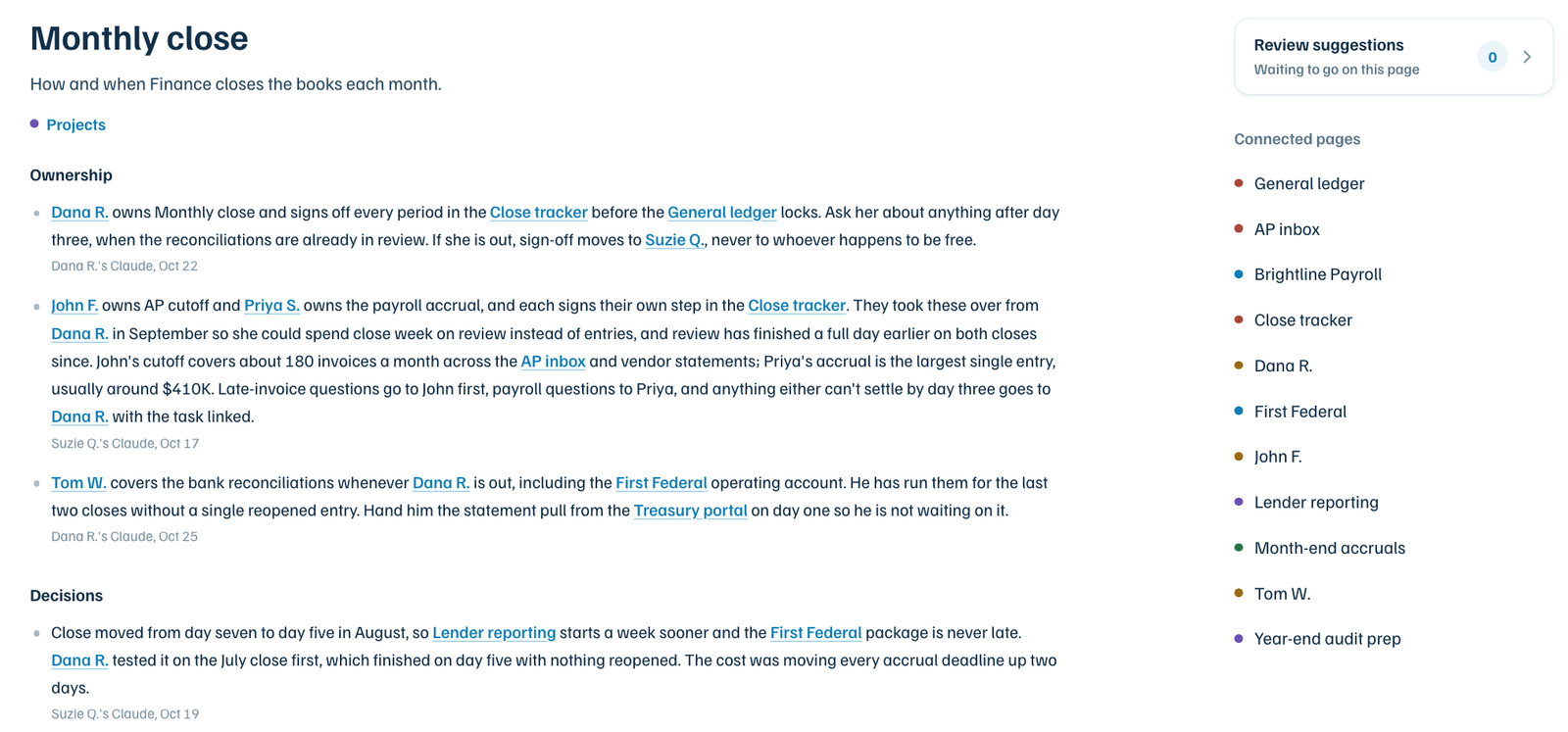 Two things to know before you add something:
- **Raw data should stay in your systems of record.** To capture a model or a spreadsheet, give the file to your AI and ask it to add the model to the team brain, for example: *"Here's our underwriting model. Add what the team should know about the model to the Acquisitions brain."* Your AI suggests a page covering what the model does, how to use the model, the numbers your team tracks from the model, and where the file lives.
- **Everyone on the team brain can read every page,** so leave out pay, performance reviews and anything else you wouldn't want the whole team to see.
A lead can also write down what else never goes in, and every AI on the brain reads that before it suggests anything.
**Team brain or company brain?** If every new hire at the company should know it, it goes in the [company brain](https://www.corridorcontext.com/docs/company-brain/). If only someone joining your team needs it, it goes in the team brain.
## Start a team brain
While your individual brain comes with your account, a team brain is created by your [platform admin](https://www.corridorcontext.com/docs/admins/#create-team-brains) in Corridor Context. The admin opens **Team Brain** in the sidebar and chooses **Create a team brain**, gives it a name, picks the people, and sets each one as a lead or a member. Whoever creates it becomes its first lead. If you're not the platform admin, ask them to create it and make you a lead.
Once the brain is created, a lead asks their AI to set it up. Your AI is equipped with a procedure for this, and it will ask a few questions about what the team works with, how the work runs and what must never go in, then set up the first pages for the lead to approve. The first pass scaffolds the brain, and from there it grows with the team's work.
## How context enters the brain
Your AI maintains the team brain as you work, the same way it maintains your [individual brain](https://www.corridorcontext.com/docs/individual-brain/). When something comes up in a chat that the team would need, like a decision and why it was made, your AI suggests it to that team's brain on its own.
You can also ask it directly. Say "add to the Finance brain that the monthly close moved to day five" and it goes in as a suggestion. Name the brain the first few times, so your AI knows which one you mean.
Each suggestion shows who it came from, and a lead reads it before anyone else on the team sees it. Leads see what's waiting in three places: a number beside **Team Brain** in the sidebar, a count such as **2 to review** on each brain they lead in the Team Brain list, and a line on their Dashboard. On the brain itself, a button such as **Review 2 suggestions** opens the queue. When nothing is waiting, it says **All caught up**. For each suggestion, a lead can:
- **Approve** it, and it appears on the page.
- Edit the wording first. Their version is what gets approved.
- **Decline** it, with a reason: wrong, outdated, already on the page, not for the brain, or sensitive. Something declined as sensitive stays out, even if someone suggests it again.
- **Skip for now** and come back to it later.
## Fix or remove something
The best way to fix a line is to ask your AI to do it for you. For example, tell it "the Riverside lender is now First Federal, fix that in the Finance brain." It suggests the change, and once a lead approves it, the new line replaces the old one.
To take a line off a page with nothing in its place, ask your AI the same way, for example "take the old lender line off the Riverside page in the Finance brain, it's outdated." It goes to the review queue as a **Take off the page** card, and the line is marked **Coming off** on the page beside it. The lead presses **Take off** to remove it, or **Keep it** to leave it there. Taking a line off can't be undone, so check the line before you press.
A lead who approves something by mistake can press **Undo** for 30 seconds afterwards. Leads can also change a page's description, or stop tracking it, from the page's settings.
## Find something
The fastest way is to ask your AI, for example "who owns the Riverside lender relationship?" You don't need to say which brain to look in.
To look through it yourself, open **Team Brain** in the sidebar and pick a brain. The map shows every page, with bigger dots for the pages the team knows more about. Use **Find a page** to search by name, and open any page to see its lines, where each one came from, and its **Connected pages**.
## Who can see it
Only the people added to the brain can see it. There are two roles, with different permissions:
| | Lead | Member |
| --- | --- | --- |
| Read the brain | Yes | Yes |
| Suggest something | Yes | Yes |
| Approve, edit or decline suggestions | Yes | No |
| Add or remove people, set lead or member | Yes | No |
To add someone, a lead opens the brain, clicks the people beside its name, and adds them by name or email. People can be added once they've signed in to Corridor Context. A brain always keeps at least one lead, and a lead can't change their own role: another lead does that.
## Questions
**Does it have to be in my individual brain first?**
No. Ask your AI to add it to the team brain directly.
**Will my AI use my individual brain and the team brain together?**
Yes. It reads your individual brain and every team brain you're on.
**Does my AI add things without me asking?**
Yes. As you work, your AI suggests what the team would need, and a lead approves each suggestion before it goes in. Your meetings go to your individual brain, not to a team brain.
**Are leads looking at my individual brain?**
No. A lead sees only the suggestions you or your AI send to the team brain.
**Can I be on more than one team brain?**
Yes. Your AI reads every team brain you're on, and suggests each thing to the one it belongs in.
**Can I see team brains I'm not on?**
No. Ask your [platform admin](https://www.corridorcontext.com/docs/admins/) or a lead of that brain to add you.
---
Source: https://www.corridorcontext.com/docs/team-brains/
# Support
> How to reach us for help, or to report a security issue.
## Get help
We read and answer every email! Email [support@corridorcontext.com](mailto:support@corridorcontext.com) to:
- Ask a question about your brains, the notetaker or connecting your AI
- Report something that isn't working
- Share an idea or feedback
- Get account support
You can also press **Send feedback** at the bottom of the sidebar in Corridor Context. Pick what kind of feedback it is, tell us more, and press **Send feedback**. It goes straight to the Corridor support team, with the page you were on, so we can see what you saw.
## Report a security issue
Email [security@corridorcontext.com](mailto:security@corridorcontext.com). We investigate every report and keep you updated on our progress. Please include:
- What you found and where
- The steps to reproduce it
- What someone could do with it
---
Source: https://www.corridorcontext.com/docs/trust/contact/