
Catalog: your firm's use case library
Open Cookbook in the sidebar, and the first tab is your firm's Catalog. Each card is one way your team uses AI, with what it does, how the team uses it, and starter prompts. Open one and start it in Claude or ChatGPT, or copy a prompt. Admins add use cases by asking Claude to write them up, and the review shows every prompt before anything goes live.
 0:00
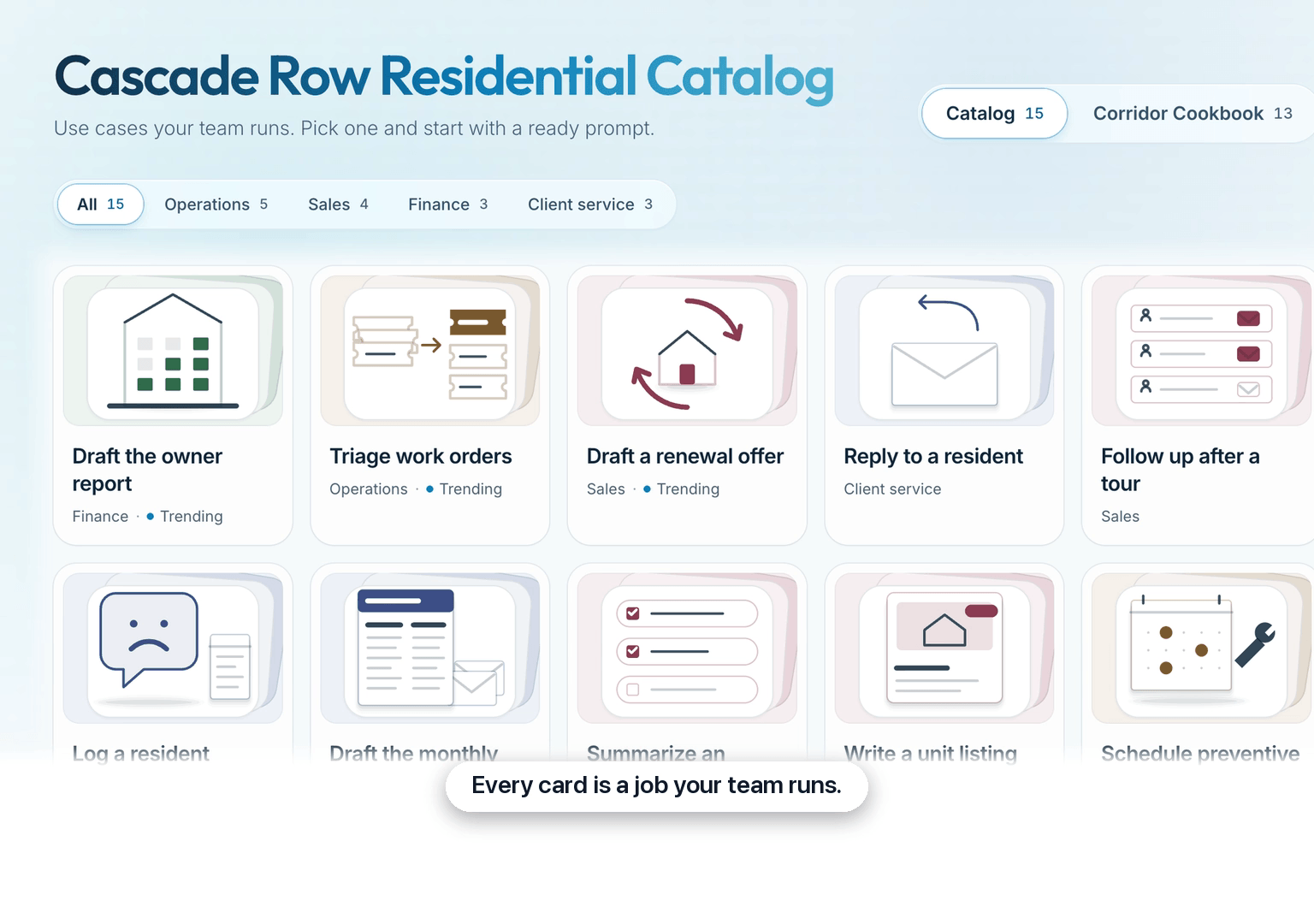
Browse your firm's use cases
Each card is one job your team runs with AI. Trending marks the ones your team used most in the last 30 days, and the chips above the cards filter by group.
 0:16
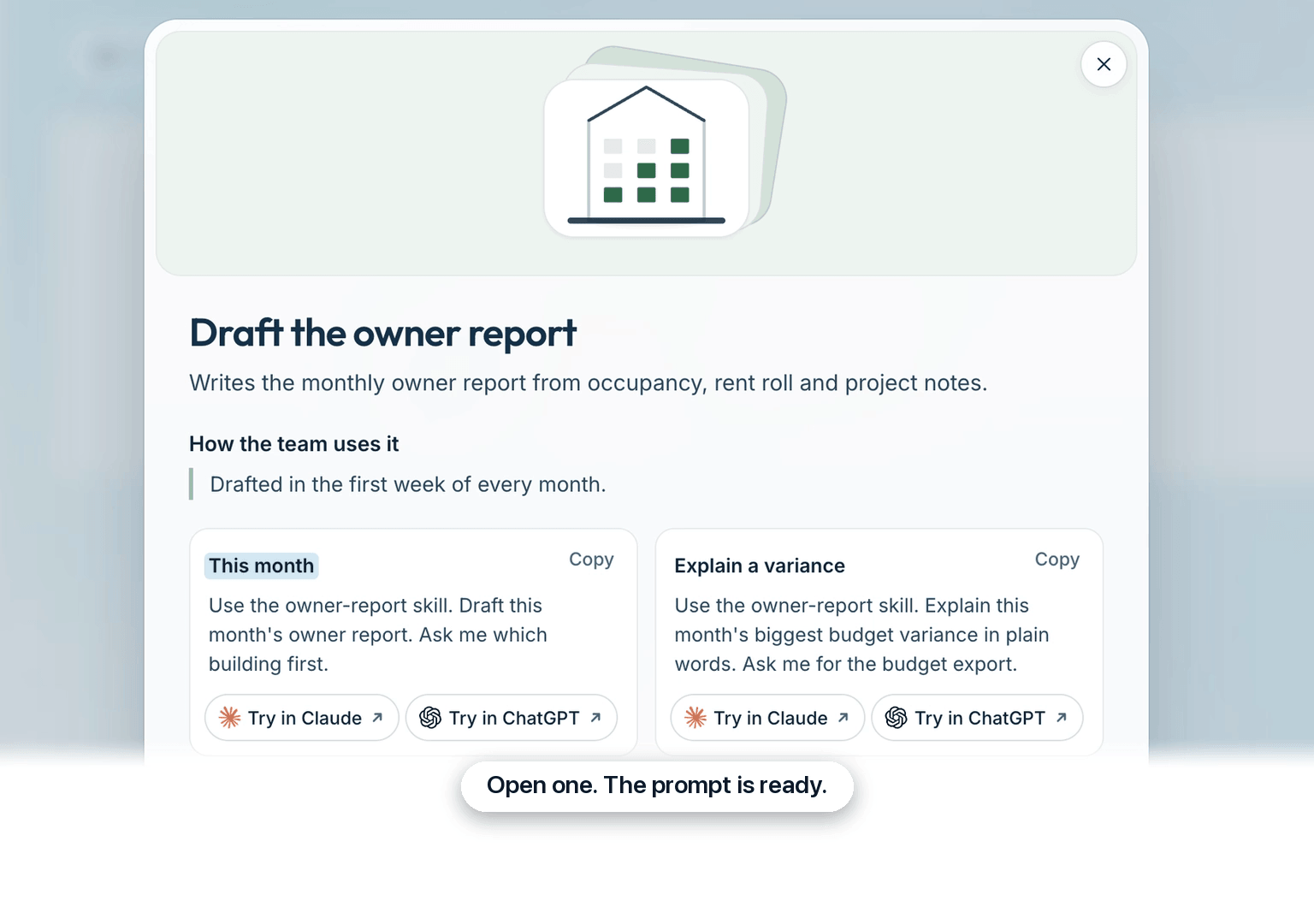
Start one in your own AI
A card shows what it does, how the team uses it, and up to three starter prompts. Press Try in Claude or Try in ChatGPT under a prompt, or Copy to use it somewhere else.
 0:30
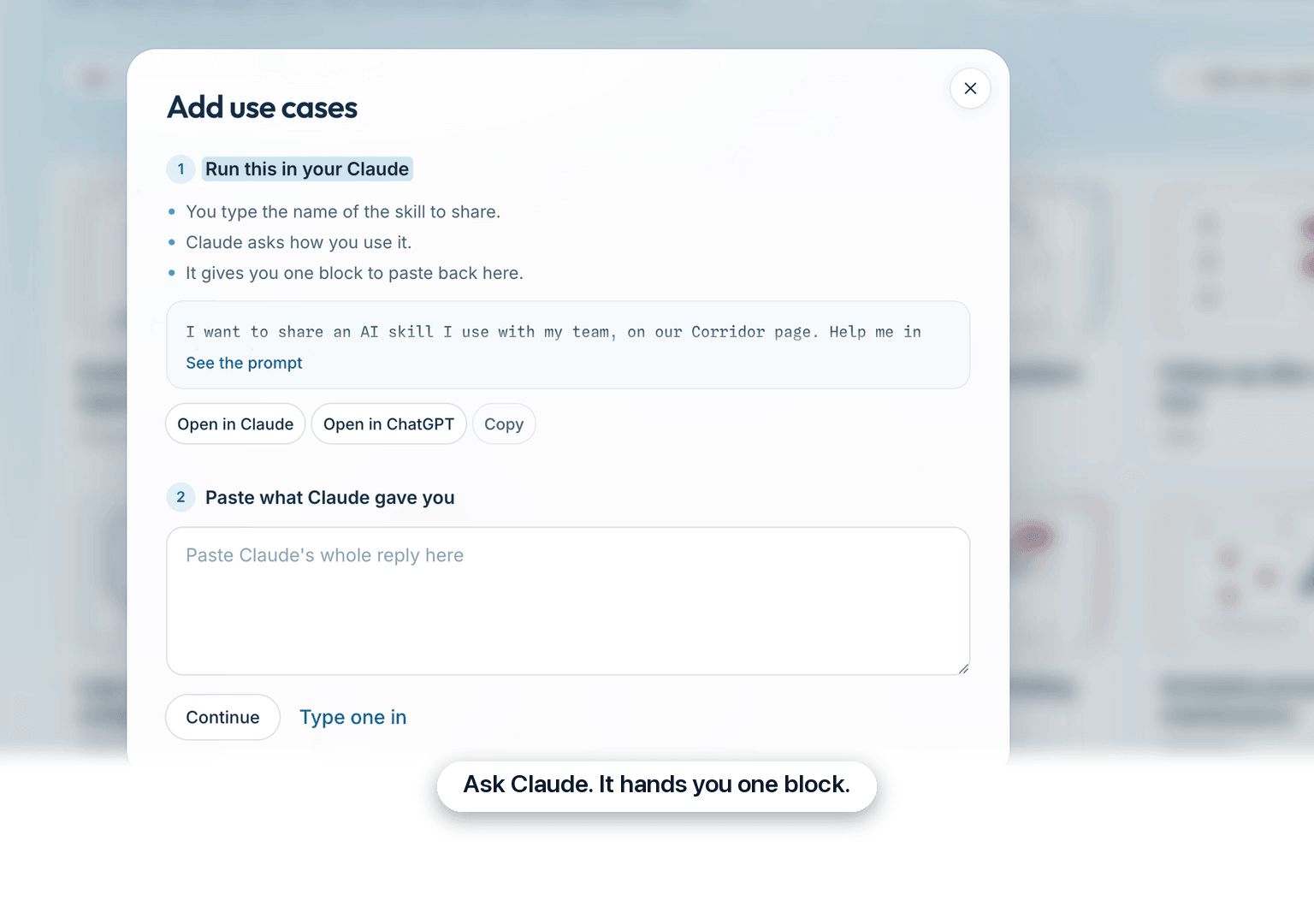
Add use cases straight from Claude
Admins press Add use cases and run its prompt in their Claude. Claude asks how they use the skill, then hands back one block to paste in.
 0:39
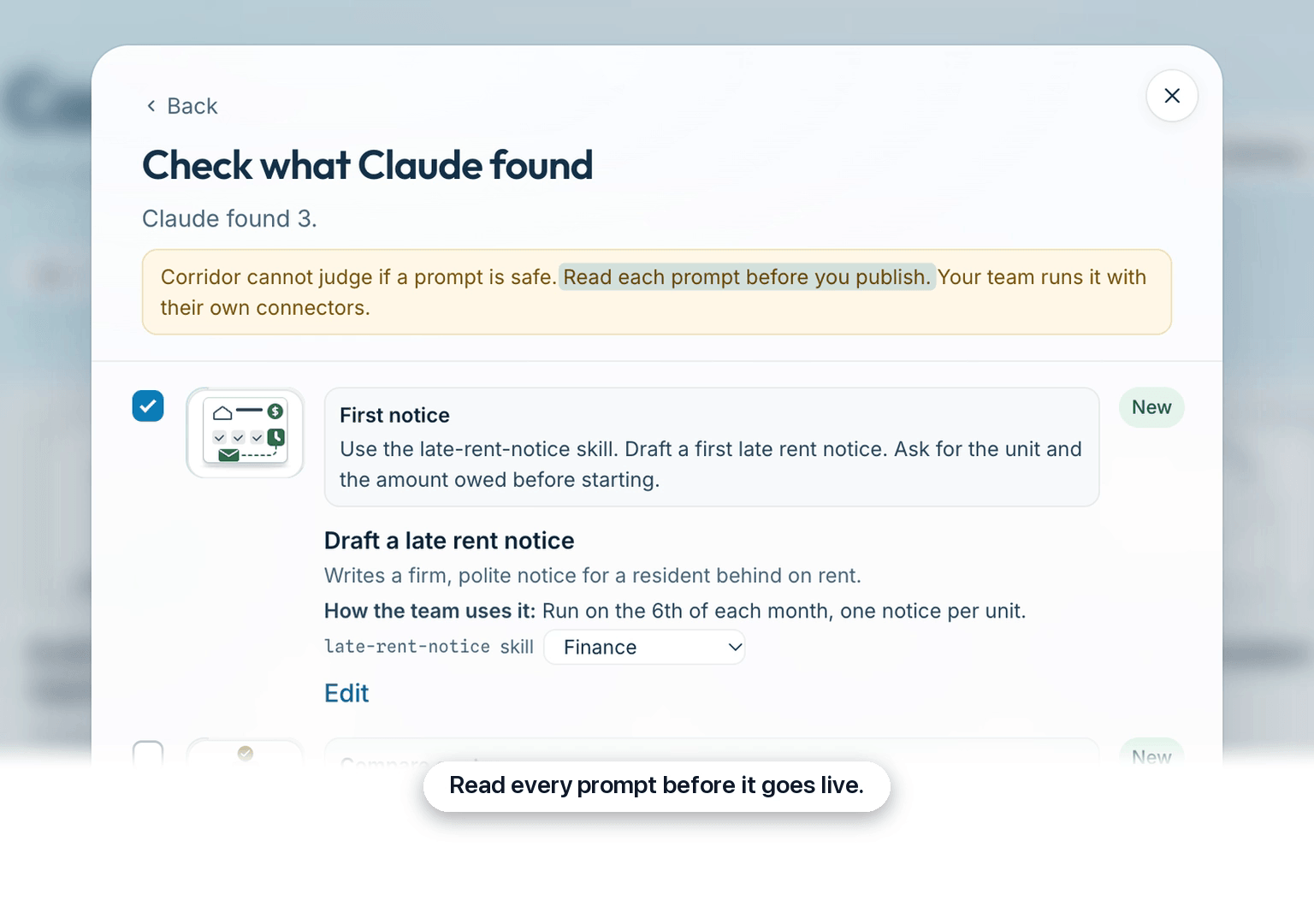
Read every prompt before it goes live
Check what Claude found shows every prompt before anything publishes. Anything flagged starts unticked, and only the ones you tick go live.
 0:54
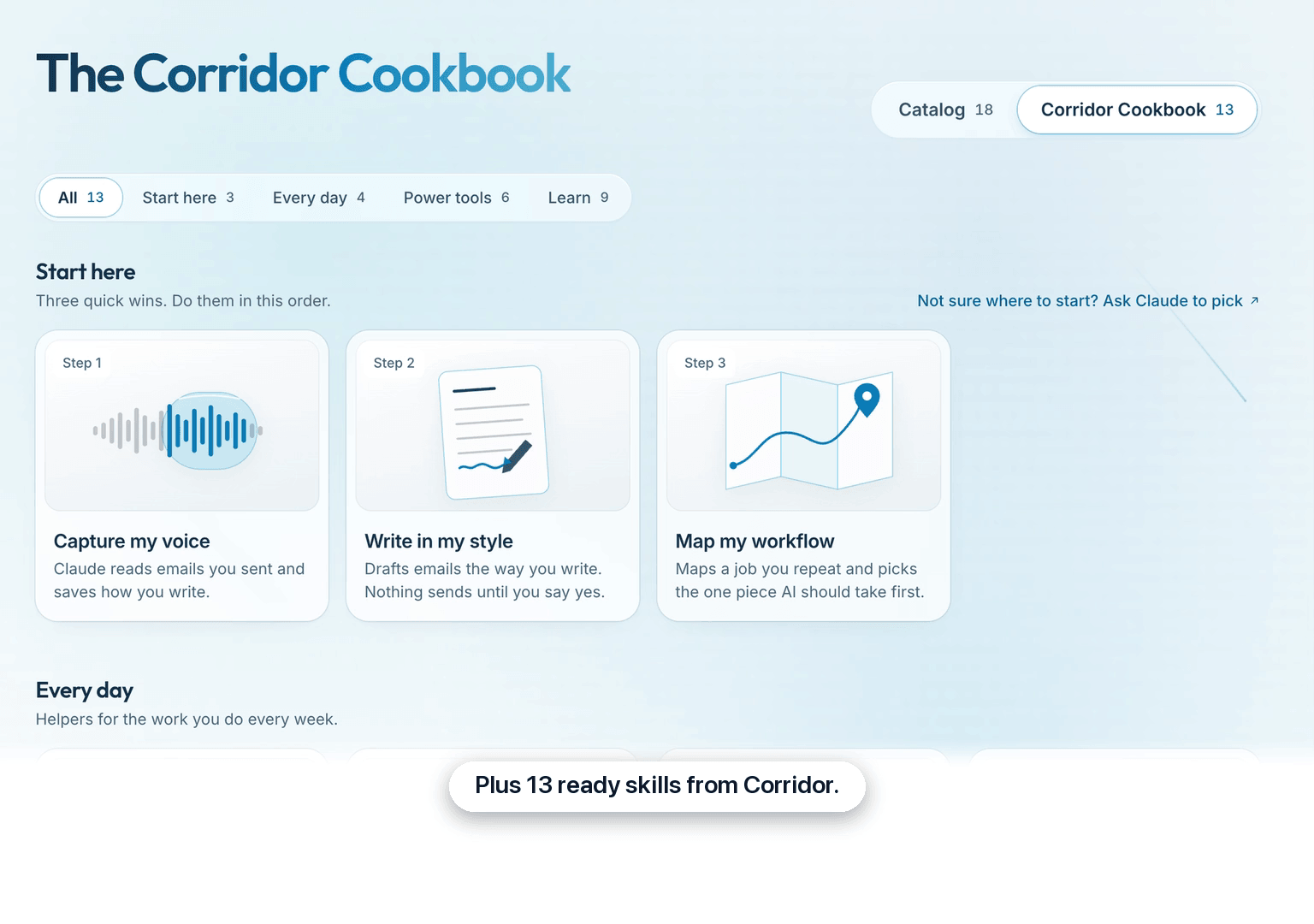
Start with 13 skills from Corridor
The Corridor Cookbook tab holds 13 ready skills in Start here, Every day and Power tools. Start here is three quick wins, in order.
Questions
For every step, with a short clip of each, see Use the Catalog.
Where do I find the Catalog?
Open Cookbook in the sidebar. The first tab, Catalog, holds your firm’s use cases. The page has two tabs, Catalog and Corridor Cookbook, and on the Catalog tab its heading is your firm’s name followed by “Catalog”. Once your firm has use cases, the Catalog opens first. Until then, the Corridor Cookbook does, except for admins, who always start on the Catalog.
What is Trending?
Up to three use cases your team started or copied most in the last 30 days. Each needs at least three presses of Try in Claude, Try in ChatGPT or Copy to count. The same person pressing again within 10 minutes counts once. The cards are also sorted that way, most used first.
How do I start a use case?
Open its card and press Try in Claude or Try in ChatGPT under the prompt you want. Each card shows what it does, how the team uses it, and up to three starter prompts. Try in Claude opens a new chat with the prompt filled in, so you can read it before you send it. Try in ChatGPT sends it right away. Either way, it runs in your own AI, with your own connectors. To use a prompt somewhere else, press Copy.
What if a card uses a skill I don’t have?
Some starter prompts name a skill, such as “Use the late-rent-notice skill.” A skill is a folder of instructions, and sometimes scripts and files, that Claude loads when a task needs it. If your Claude doesn’t have that skill, it can’t follow it. Ask your admin to share it with your team in Claude. On Claude Team and Enterprise plans, an organization owner can provision a skill for everyone at once.
Who can add a use case?
Admins. An admin presses Add use cases, runs the prompt it gives them in Claude, and pastes back the block Claude writes. Anyone can run that prompt. If you’re not an admin, send the block Claude gives you to your admin.
Can anything go live without an admin?
No. Only an admin can publish, and the review shows every prompt in full first. After the paste, the admin sees Check what Claude found, with every prompt in full. Corridor Context can’t judge whether a prompt is safe, so the screen asks the admin to read each one. A use case that names a person, says I, you or we, contains a link, or changes a prompt that’s already live starts unticked. One that’s missing details can’t be ticked until it’s fixed. Only ticked use cases go live.
How do I hide or remove a card?
Open the card. Admins see Hide from team and Remove on it. Hide from team takes it off everyone else’s Catalog. Admins still see it under Hidden from the team, and Show to team brings it back. Remove takes it away for everyone, after you confirm. To bring it back, open Removed under the cards and press Restore.
What’s the difference between the Catalog and the Corridor Cookbook?
The Catalog is your firm’s own use cases. The Corridor Cookbook is the same 13 skills for every firm. Your admins write the Catalog, so it shows how your team works. We write the Corridor Cookbook: ready-made skills for Claude, in three groups, Start here, Every day and Power tools. That tab also has walkthroughs under Learn.
In Corridor Context: Open Cookbook