
Brains
Team brains
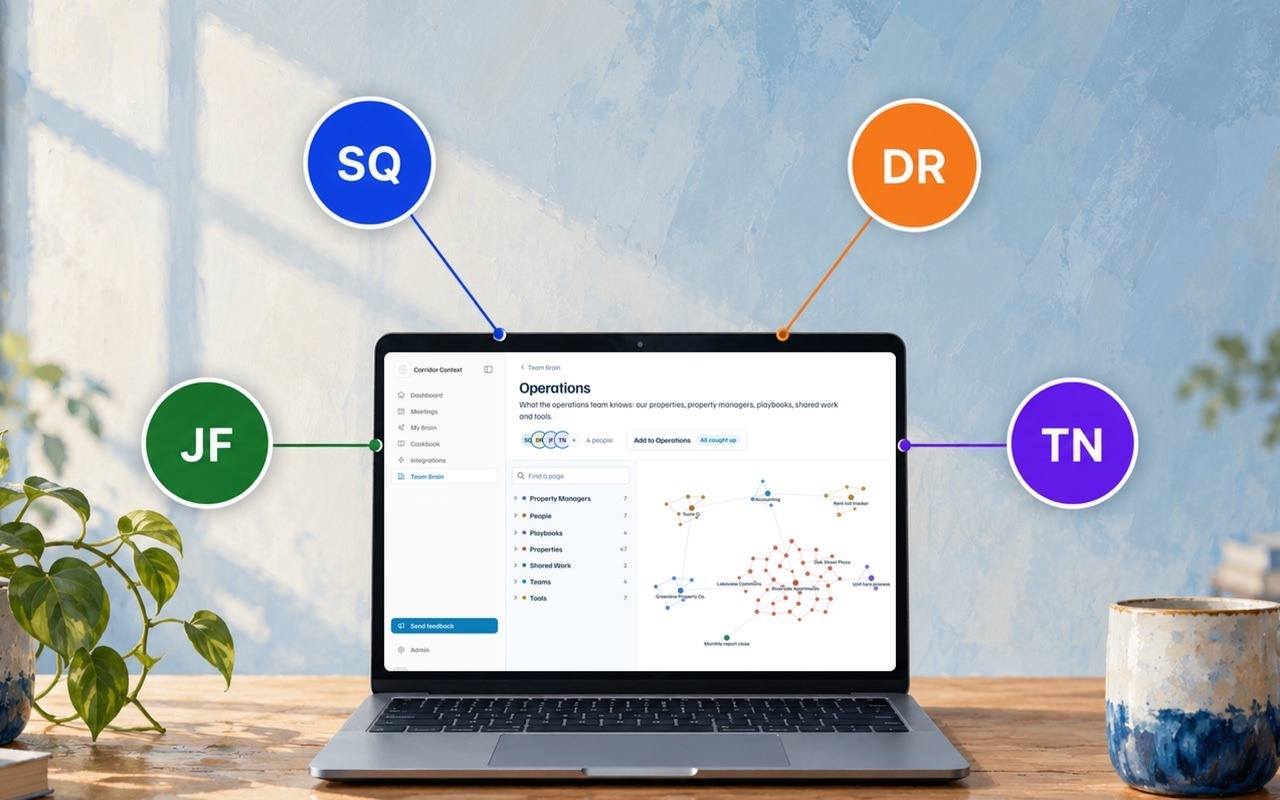
A team brain is a shared wikipedia for one team: a page for each thing the team works with, and what the team knows about it. When a member connects their AI to Corridor Context, their AI reads it and knows the team’s responsibilities, processes and decisions. As you work with your AI, it suggests changes when something is relevant to the brain. Only people added to the brain can read it, and a few of them are leads: they approve what goes in and decide who’s on it.
What’s in it
Section titled “What’s in it”Anything your team works with on an ongoing basis gets its own page, like a client, a vendor, a system or a process. Each page holds what the team knows about it: who’s responsible for it and who to ask, how the work around it runs, what was decided and why, and where to find its data in your systems of record.
Most teams first use it to unify their best practices. Instead of living in a few people’s heads, they’re shared with the whole team, and every connected assistant holds itself to that standard.
To work out what gets a page, here are a few questions to get started:
- What do we work with every week, and who is responsible for each part?
- How does our primary workstream go from start to finish?
- What would someone new to the team wish they’d been told?
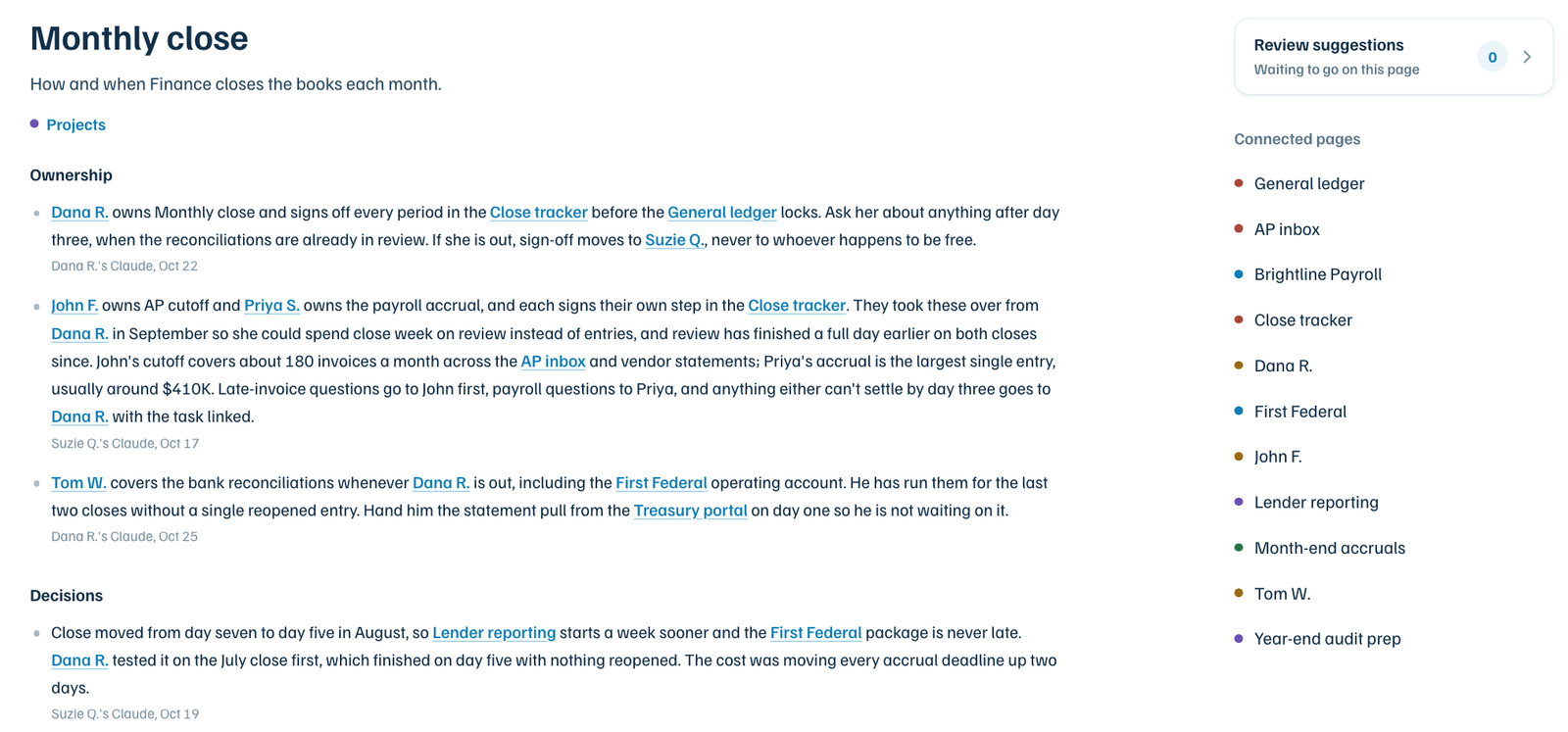
Two things to know before you add something:
- Raw data should stay in your systems of record. To capture a model or a spreadsheet, give the file to your AI and ask it to add the model to the team brain, for example: “Here’s our underwriting model. Add what the team should know about the model to the Acquisitions brain.” Your AI suggests a page covering what the model does, how to use the model, the numbers your team tracks from the model, and where the file lives.
- Everyone on the team brain can read every page, so leave out pay, performance reviews and anything else you wouldn’t want the whole team to see.
A lead can also write down what else never goes in, and every AI on the brain reads that before it suggests anything.
Team brain or company brain? If every new hire at the company should know it, it goes in the company brain. If only someone joining your team needs it, it goes in the team brain.
Start a team brain
Section titled “Start a team brain”While your individual brain comes with your account, a team brain is created by your platform admin in Corridor Context. The admin opens Team Brain in the sidebar and chooses Create a team brain, gives it a name, picks the people, and sets each one as a lead or a member. Whoever creates it becomes its first lead. If you’re not the platform admin, ask them to create it and make you a lead.
Once the brain is created, a lead asks their AI to set it up. Your AI is equipped with a procedure for this, and it will ask a few questions about what the team works with, how the work runs and what must never go in, then set up the first pages for the lead to approve. The first pass scaffolds the brain, and from there it grows with the team’s work.
How context enters the brain
Section titled “How context enters the brain”Your AI maintains the team brain as you work, the same way it maintains your individual brain. When something comes up in a chat that the team would need, like a decision and why it was made, your AI suggests it to that team’s brain on its own.
You can also ask it directly. Say “add to the Finance brain that the monthly close moved to day five” and it goes in as a suggestion. Name the brain the first few times, so your AI knows which one you mean.
Each suggestion shows who it came from, and a lead reads it before anyone else on the team sees it. Leads see what’s waiting in three places: a number beside Team Brain in the sidebar, a count such as 2 to review on each brain they lead in the Team Brain list, and a line on their Dashboard. On the brain itself, a button such as Review 2 suggestions opens the queue. When nothing is waiting, it says All caught up. For each suggestion, a lead can:
- Approve it, and it appears on the page.
- Edit the wording first. Their version is what gets approved.
- Decline it, with a reason: wrong, outdated, already on the page, not for the brain, or sensitive. Something declined as sensitive stays out, even if someone suggests it again.
- Skip for now and come back to it later.
Fix or remove something
Section titled “Fix or remove something”The best way to fix a line is to ask your AI to do it for you. For example, tell it “the Riverside lender is now First Federal, fix that in the Finance brain.” It suggests the change, and once a lead approves it, the new line replaces the old one.
To take a line off a page with nothing in its place, ask your AI the same way, for example “take the old lender line off the Riverside page in the Finance brain, it’s outdated.” It goes to the review queue as a Take off the page card, and the line is marked Coming off on the page beside it. The lead presses Take off to remove it, or Keep it to leave it there. Taking a line off can’t be undone, so check the line before you press.
A lead who approves something by mistake can press Undo for 30 seconds afterwards. Leads can also change a page’s description, or stop tracking it, from the page’s settings.
Find something
Section titled “Find something”The fastest way is to ask your AI, for example “who owns the Riverside lender relationship?” You don’t need to say which brain to look in.
To look through it yourself, open Team Brain in the sidebar and pick a brain. The map shows every page, with bigger dots for the pages the team knows more about. Use Find a page to search by name, and open any page to see its lines, where each one came from, and its Connected pages.
Who can see it
Section titled “Who can see it”Only the people added to the brain can see it. There are two roles, with different permissions:
| Lead | Member | |
|---|---|---|
| Read the brain | Yes | Yes |
| Suggest something | Yes | Yes |
| Approve, edit or decline suggestions | Yes | No |
| Add or remove people, set lead or member | Yes | No |
To add someone, a lead opens the brain, clicks the people beside its name, and adds them by name or email. People can be added once they’ve signed in to Corridor Context. A brain always keeps at least one lead, and a lead can’t change their own role: another lead does that.
Questions
Section titled “Questions”Does it have to be in my individual brain first?
No. Ask your AI to add it to the team brain directly.
Will my AI use my individual brain and the team brain together?
Yes. It reads your individual brain and every team brain you’re on.
Does my AI add things without me asking?
Yes. As you work, your AI suggests what the team would need, and a lead approves each suggestion before it goes in. Your meetings go to your individual brain, not to a team brain.
Are leads looking at my individual brain?
No. A lead sees only the suggestions you or your AI send to the team brain.
Can I be on more than one team brain?
Yes. Your AI reads every team brain you’re on, and suggests each thing to the one it belongs in.
Can I see team brains I’m not on?
No. Ask your platform admin or a lead of that brain to add you.