
A guided start for everyone new
Everyone new now sets up the same way, in one flow. They join your workspace, sign in to Claude or ChatGPT with their work email, and answer a short interview, by talking or typing, that builds their brain. Then they connect their AI and land on the Dashboard with a short tour. Admins follow each person's progress from the Users page.
 0:00
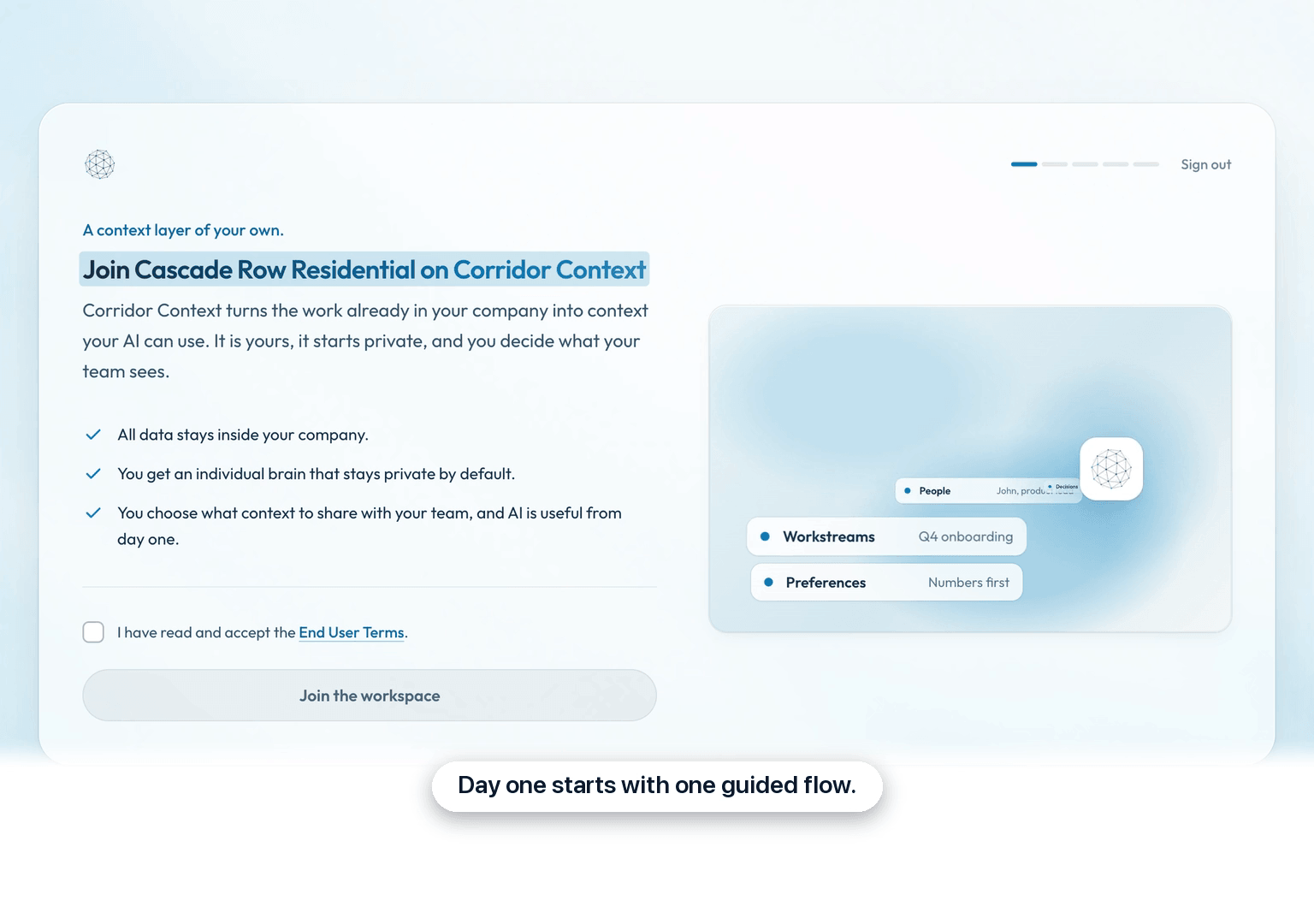
Join your workspace
Everyone new starts in the same guided flow, with five dots at the top to show where you are. Accept the terms and press Join the workspace.
 0:08
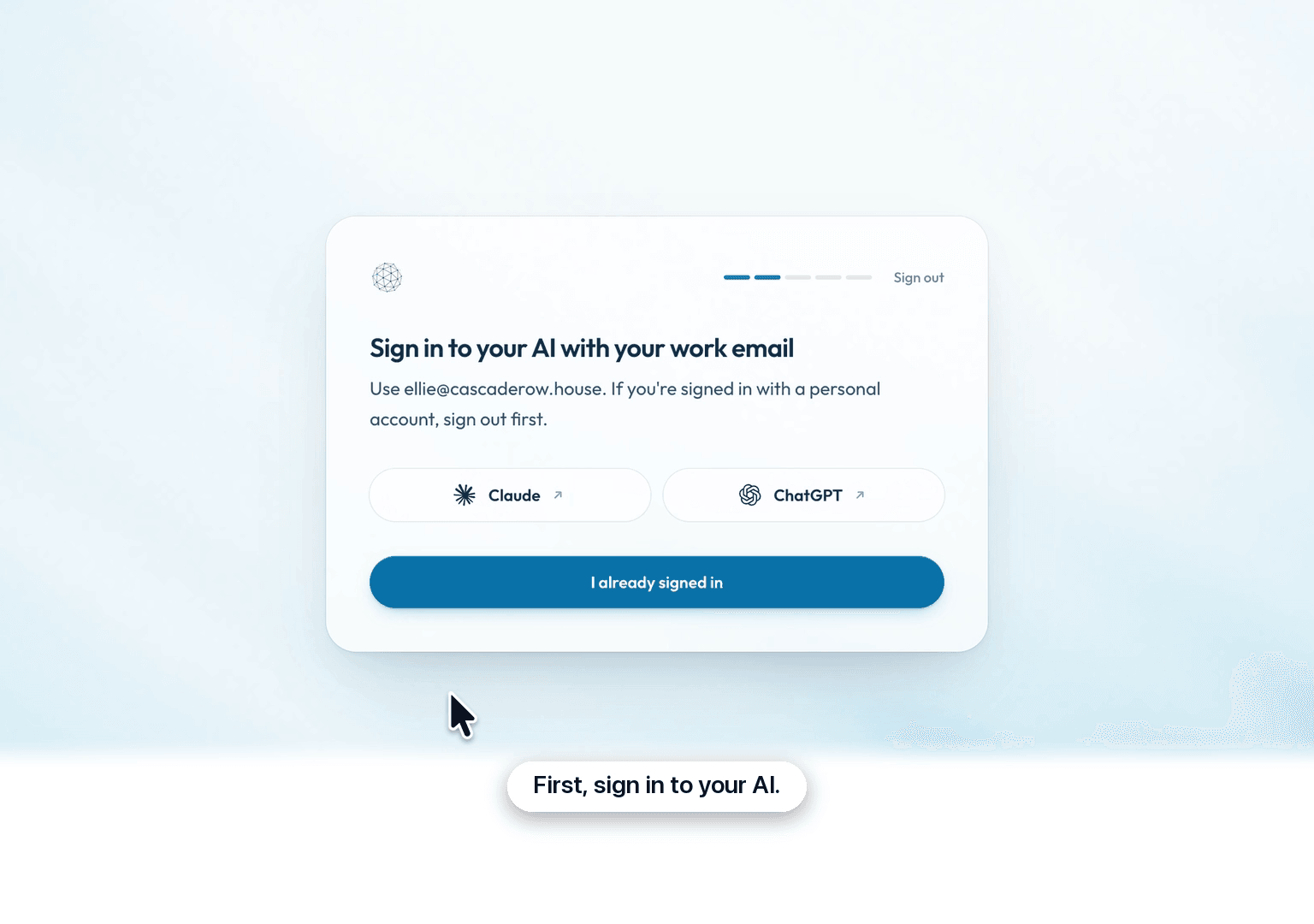
Sign in to your AI and pick your role
Sign in to Claude or ChatGPT with your work email, then press I already signed in. Pick the kind of work you do, and it shapes the questions that follow.
 0:18
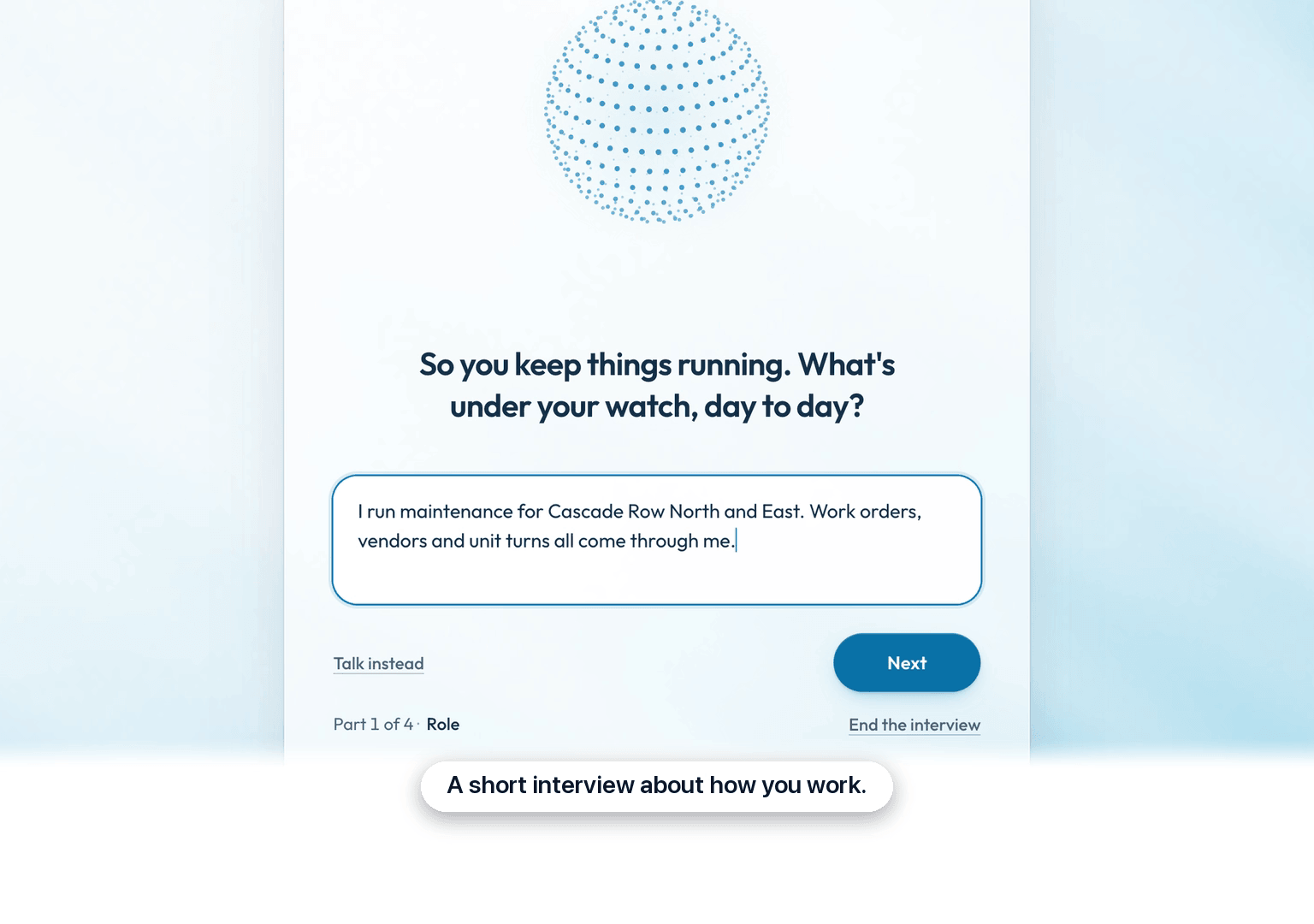
Answer a short interview
Choose Talk or Type and answer questions about your role, your work, the people you work with and the systems you use. Your answers become your first pages, and nothing is saved until you press Looks right.
 0:33
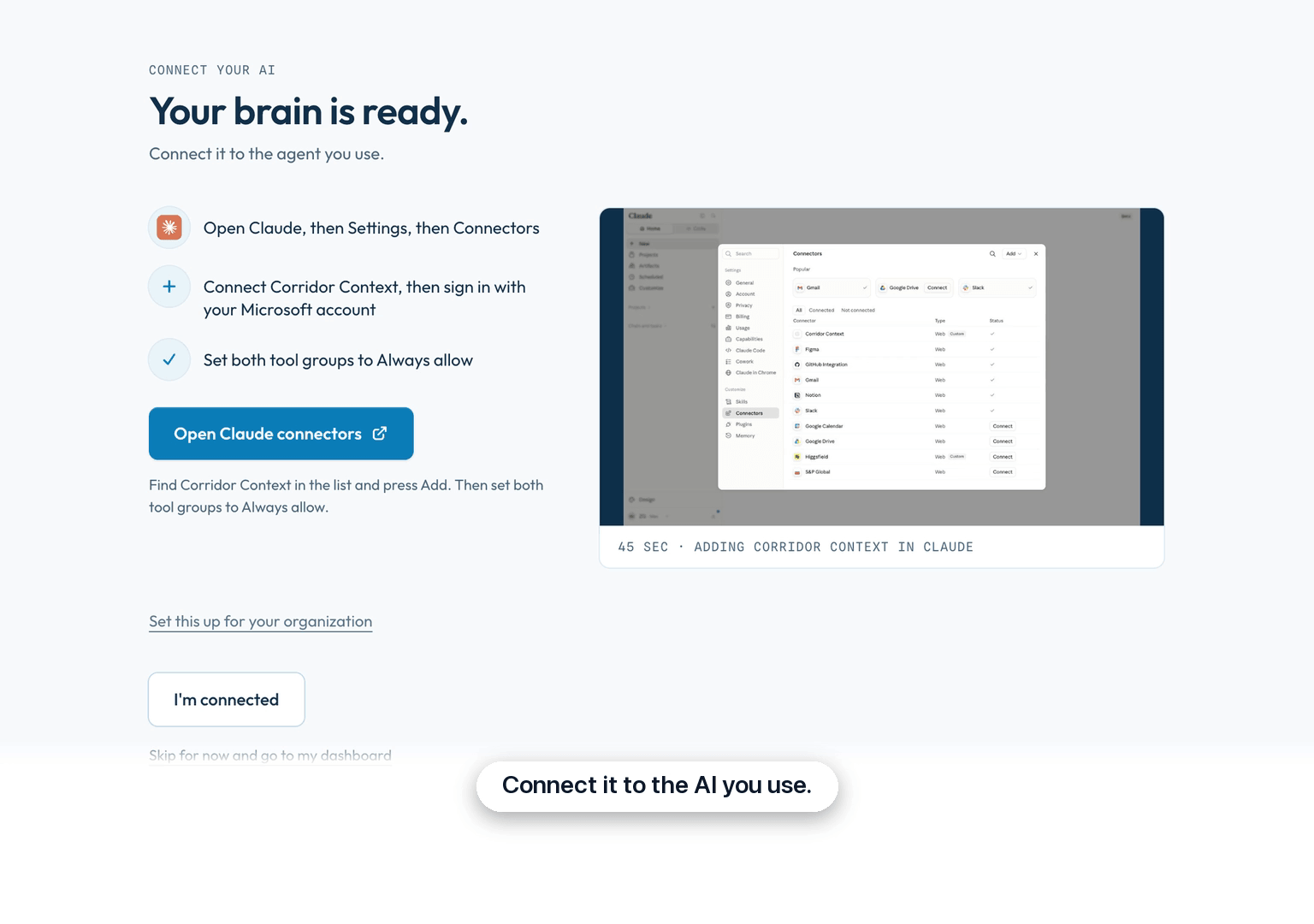
Connect your AI
Follow the steps on screen to add Corridor Context to Claude or ChatGPT, then press I'm connected. You can skip this and connect later; your brain is already saved.
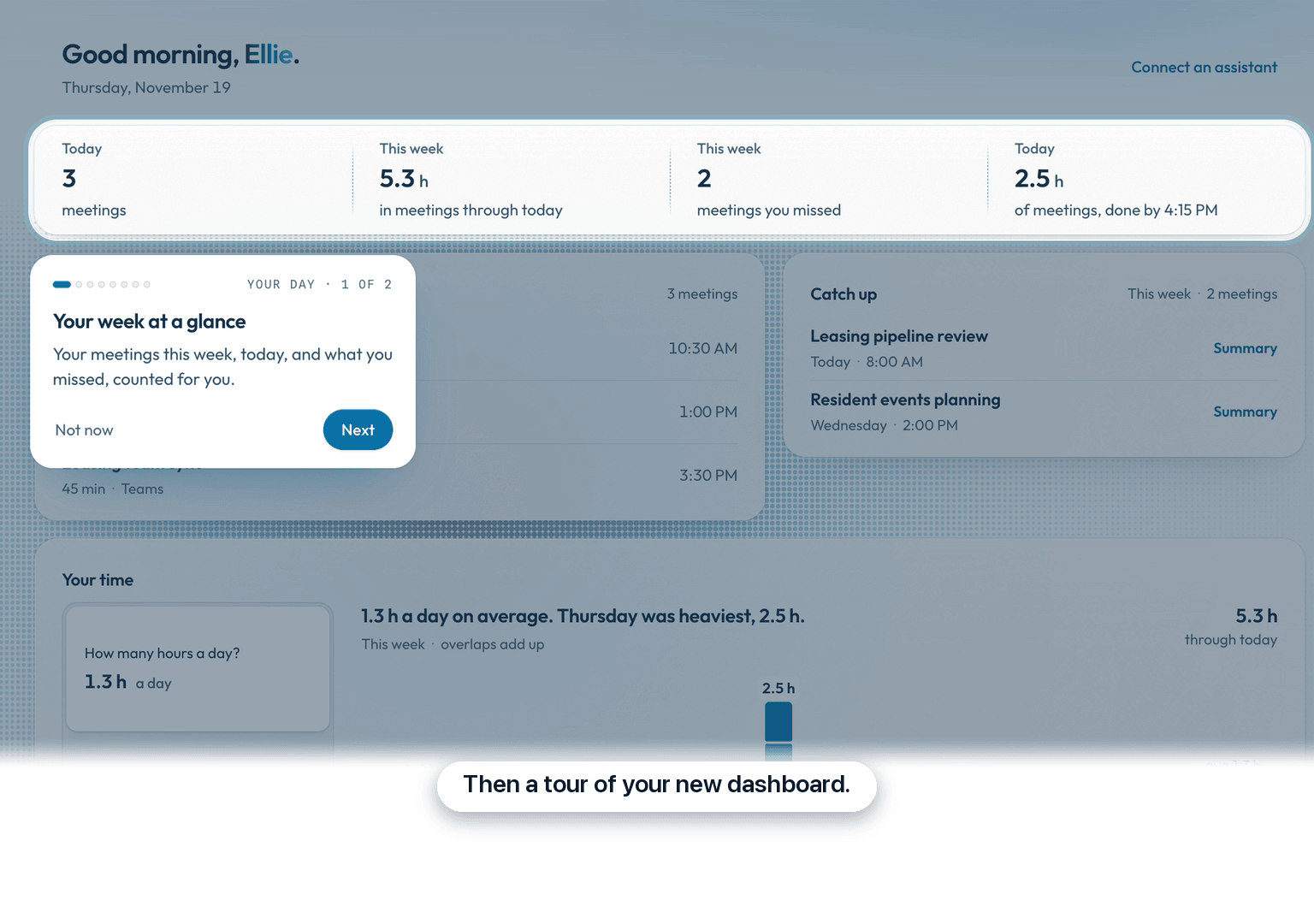 0:41
Take the tour
You land on the Dashboard, and a short tour shows you around. Not now pauses it for later on the same browser, and once you finish it you can't take it again.
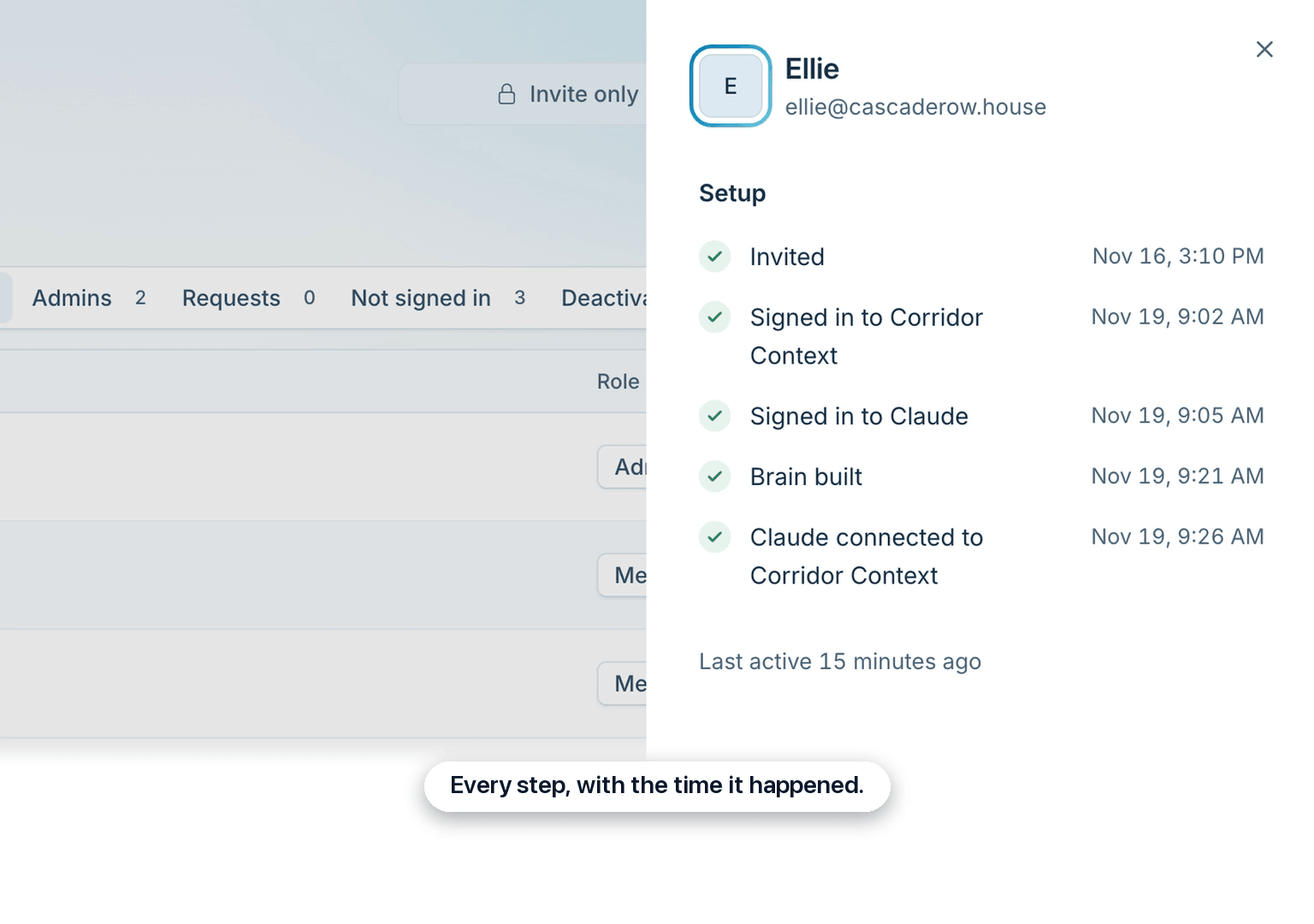 0:54
See where each person stands
On the Users page, click a person's name to open their panel. Setup shows each step with the time they finished it, which AI they connected, and when they were last active.
Setup takes about 20 minutes, once. The interview is about ten of them. Five steps, shown as dots at the top, take you from your invite to your Dashboard.
The five steps
- Join: accept the terms and press Join the workspace.
- Sign in to your AI: open Claude or ChatGPT, sign in with your work email, and press I already signed in.
- Your role: pick the kind of work you do. It shapes the questions.
- The interview: choose Talk or Type, then answer questions about your role, what you’re working on, the people you work with and the systems you use. You can switch between talking and typing any time. Afterwards, you can bring over the memory you’ve built with another AI, or press Skip for now. Then you check the pages your answers became, under Here is what we wrote. Does it look right? Nothing is saved until you press Looks right.
- Connect your AI: add Corridor Context to Claude or ChatGPT and press I’m connected.
Sign out and pick up later
You can press Sign out at the top right, up to and during the interview.
Your interview answers are saved as you go. Sign back in within a day, pass the first screens again, and the interview picks up at the question you were on.
Connecting your AI can wait
You don’t have to connect your AI to finish. Your brain is saved once you press Looks right.
On the connect screen, Skip for now and go to my dashboard takes you straight in. The Dashboard may remind you with Connect Claude to finish setup. Connect when you’re ready with Connect Claude.
At the end
You land on the Dashboard, and a short tour shows you around.
If you pressed I’m connected, one screen comes first. Get started opens your AI with a prompt that reads your new brain and suggests three things it can help you finish. The tour walks through your day, your meetings, the notetaker, your brain and the Cookbook, then offers prompts to try.
You can’t take the tour again once you finish it. If you stop partway with Not now, it can pick up later. The next time you sign in on the same browser and open the Dashboard, it asks Pick up the tour? Press Resume to carry on where you stopped. The tour uses example meetings and saves nothing to your brain.
Questions
Can someone skip setup?
No. Anyone who hasn’t finished setup goes through this flow the next time they sign in, admins included. Two parts of it are optional: bringing over memory from another AI, and connecting your AI. That includes people you added earlier who started setup and never finished, or skipped it. Until they finish, every page in Corridor Context takes them back to the flow. Anyone who has already finished setup goes straight to their Dashboard as before. If people on your team never finished, let them know before they next sign in.
How do I see where someone is stuck?
Open Admin, then Users, and click their name. Under Setup, each step shows when they finished it, and the next one says Up next. You see when they were invited or joined, signed in to Corridor Context, signed in to their AI, built their brain, and which AI they connected. It also shows when they were last active.
How do I resend an invite?
Press Resend invite in their panel on the Users page. It shows only for someone who hasn’t finished setup. Each person can get one invite an hour, so after you send one, the button says Invite resent until the hour is up. Adding someone who’s already on the Users page sends nothing.
What does the invite say?
It tells them they were added to Corridor Context, with one button to sign in. It says who added them, and lists three steps: sign in with their work Microsoft account, set up in about 20 minutes, then start.
In Corridor Context: Open Users