
Notetaker questions, answered
The questions we hear most in onboarding sessions. Each one has the short answer up front. Open one for the steps.
Will the notetaker join every meeting on my calendar?
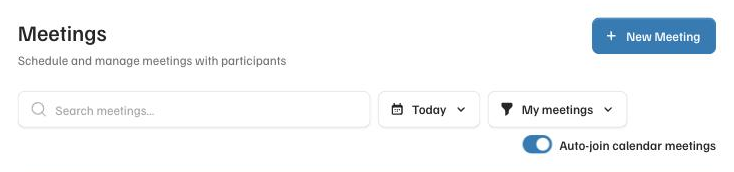
You control this. Auto-join is on by default, and you can turn it off. The switch is called Auto-join calendar meetings, at the top right of the Meetings page. While it is on, the notetaker joins your calendar meetings on its own. Turn it off and your calendar stops adding meetings. You can still add one yourself with New Meeting. Turn it back on and it also picks up the meetings already on your calendar for the next two weeks.
How do I keep the notetaker out of one meeting?
Open that meeting and press Remove notetaker.
- Open Meetings and click the meeting.
- In the Notetaker box, press Remove notetaker and confirm.
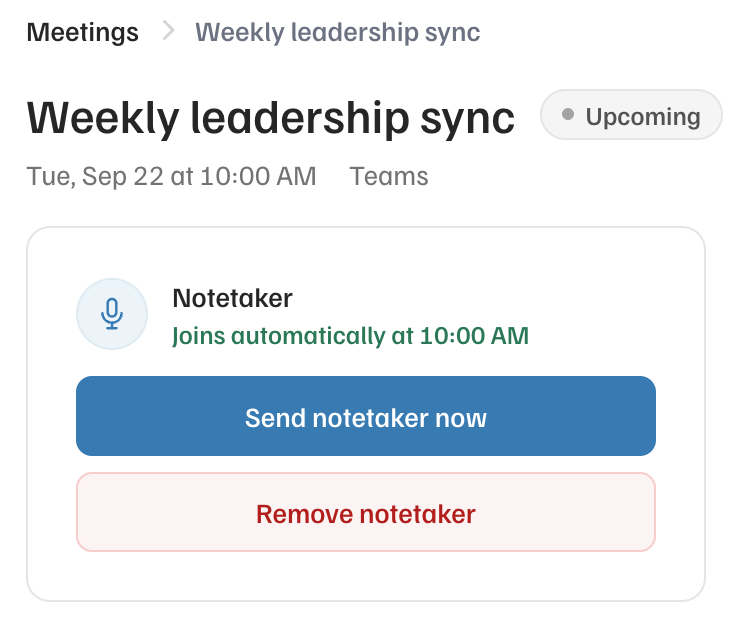
It will not join, and it will not come back on its own, even if the calendar invite changes.
This works during a meeting too. The notetaker leaves right away, and whatever it captured up to that point is kept. If you change your mind, the same box offers Send notetaker back in.
You can also kick it out from inside the call. Find the notetaker in the participant list and remove it, the same way you would remove a person. It leaves right away.
Is it recording when I do not see it in the meeting?
No. It only captures a meeting it has visibly joined. The notetaker shows up in the participant list by name, the same as a person would, so everyone in the meeting can see it is there. If it is not in the list, nothing is being captured.
Who gets the summary afterwards?
You decide, meeting by meeting. Open the meeting and find Summary sharing. There are three choices.
- Send to all participants
- Send to only internal participants, meaning people at your company
- Do not send to anyone
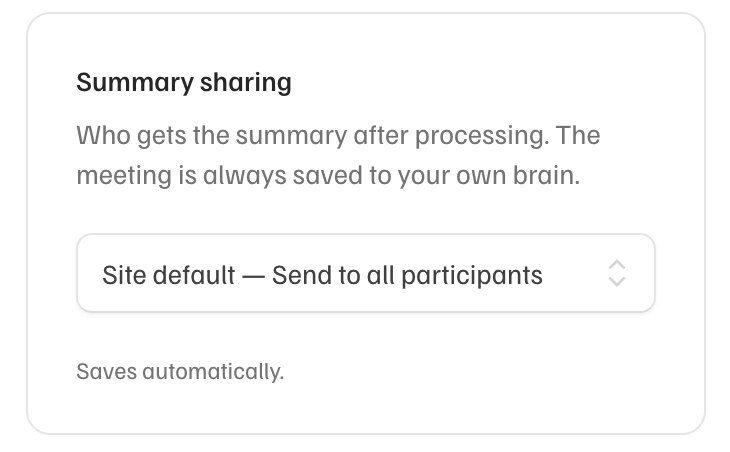
Your admin sets the default. The meeting is always saved to your own brain, whichever you pick.
Does the summary read into tone, or judge how the meeting went?
No. It sticks to what was said. You get a transcript and a plain, factual summary with decisions and action items. Claude will only interpret a meeting if you ask it to, in your own chat.
Why did the notetaker not join a meeting on my calendar?
It is probably waiting in the lobby for someone to let it in. The notetaker joins like any other guest. If your meeting has a lobby, someone in the meeting has to admit it, so look for it in the waiting list.
If it is not there either, open the meeting from Meetings and look at the Notetaker box.
- If it says it joins automatically at the start time, it is booked. Press Send notetaker now to bring it in right away.
- If it offers Schedule notetaker, it was never booked. Press it, and check that Auto-join calendar meetings is on for next time.
- If the meeting is missing from the list altogether, add it with New Meeting and paste the join link.
When does the notetaker leave?
Five minutes after the last person leaves the call. If people drop off briefly and rejoin, the notetaker is still there. If the only ones left in the call never speak, such as another company’s notetaker or people on mute, it leaves after four minutes instead. It only starts checking for that 15 minutes into the meeting, so a meeting that starts late keeps its recording.
In Corridor Context: Open Meetings